


Trusted by 1M+ creators
WMV to MOV
Convert WMV to MOV and other video formats to WMV online, free
No credit card required
4.6
2,100+ reviews















How to Convert WMV to MOV:
Step 01
Upload a file
Upload the WMV file you wish to convert. Just drag & drop it onto the page, or click the blue button to choose from a folder on your device.
Step 02
Convert your video
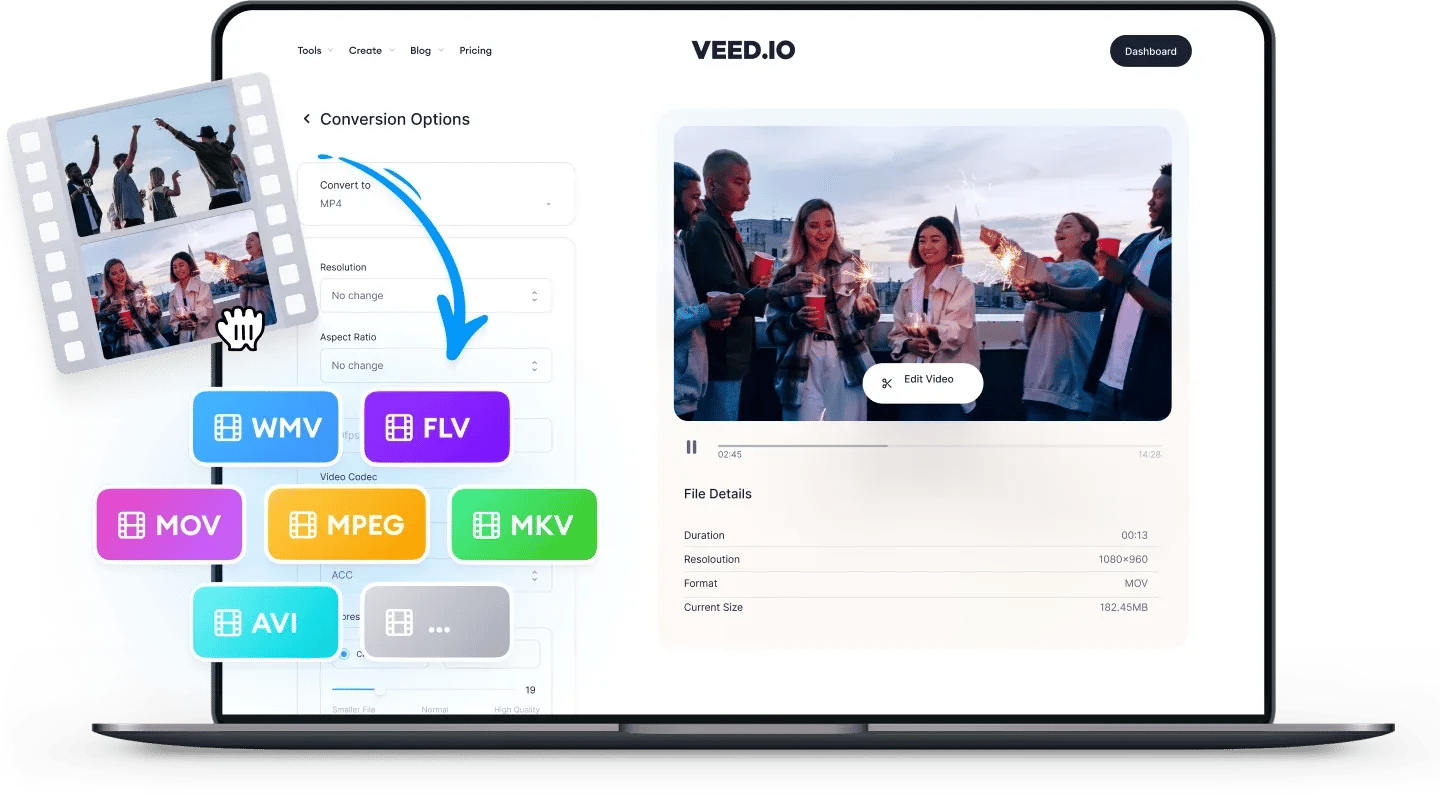
Choose MOV as the output format, by selecting from the dropdown list of file types. Then just press ‘Convert File’. It’s that easy!
Step 03
Download (& Edit) your video
Hit the ‘Download File’ button to save your newly converted MOV file. You can also click the ‘Edit’ button to add text, auto-subtitles, progress bars, and more to your video. It’s super-easy, with VEED!
Learn More
‘Convert WMV to MOV’ Tutorial
WMV
WMV is a popular video format designed primarily for Windows devices. You can upload WMV files to Facebook and YouTube, but not to mobile-based social media platforms like Instagram and TikTok. WMV files can be opened on Windows Media Player or any other native video player on a Windows operating system.
It is a popular storage format for third-party programs storing short animations. Windows Media Video (WMV) files are not compatible with Apple devices like iPhones. All WMV files must be converted before they can be played on Apple's QuickTime Player.
MOV
MOV is the default video format for videos taken using iPhones, MacBooks, and other Apple devices. You can upload MOV files to Facebook, Twitter, Instagram, YouTube, and TikTok.
MOV uses an MPEG4 container file format that stores multiple tracks including audio and video tracks, and text. MOV is most commonly used for saving movies and other video files. It is designed primarily for QuickTime Player which is the native media player on Apple Devices. It is sometimes also referred to as 'iMovie video'.
FAQ
- Select your WMV video and upload it to VEED
- Choose MOV or your desired format from the dropdown and click Convert
- Export the video
VEED’s WMV to MP4 converter is completely free to use. You don’t even need to sign up or create an account. Just upload your video, select WMV and MP4 as the video formats, and download your video!
No, WMV is a Microsoft proprietary format best suited for Windows Media Player, and MOV is an Apple proprietary format, best suited for Apple devices. The file formats are similar in quality of videos stored and popularity, but are not compatible on the same devices. Nor are they interchangeable.
VEED recognises WMV files on any device. Use VEED to convert your WMV files to MOV using VEED’s two-way video file converter. Download as MOV to play on Mac, iPad and iPhone.
Loved by creators.
Loved by the Fortune 500
“
With VEED I didn't need 15 tutorials - I jumped straight in and started editing.

Gwenne Wilcox
Founder,
Brand Brainery
“
You can go beyond choppping things. VEED actually makes my videos look great.

Michael Glover
Demand Gen Manager,
ConvertFlow
“
The first four videos i created with VEED got over 40,000 impressions on LinkedIn.

Travis Tyler
Senior Content Producer,
PandaDoc
“
I found VEED at the right time: if you're making UGC ads and not using Eye Contact Correction and Noise Reduction on VEED you're missing out on ROI.

Sebastian Schurgers
Head of Growth Marketing,
Gronda
“
With VEED I didn't need 15 tutorials - I jumped straight in and started editing.
Gwenne Wilcox
Founder,
Brand Brainery
“
You can go beyond choppping things. VEED actually makes my videos look great.
Michael Glover
Demand Gen Manager,
ConvertFlow
“
The first four videos i created with VEED got over 40,000 impressions on LinkedIn.
Travis Tyler
Senior Content Producer,
PandaDoc
“
I found VEED at the right time: if you're making UGC ads and not using Eye Contact Correction and Noise Reduction on VEED you're missing out on ROI.
Sebastian Schurgers
Head of Growth Marketing,
Gronda
“
The first four videos i created with VEED got over 40,000 impressions on LinkedIn.
Travis Tyler
Senior Content Producer,
PandaDoc
“
I found VEED at the right time: if you're making UGC ads and not using Eye Contact Correction and Noise Reduction on VEED you're missing out on ROI.
Sebastian Schurgers
Head of Growth Marketing,
Gronda
“
With VEED I didn't need 15 tutorials - I jumped straight in and started editing.
Gwenne Wilcox
Founder,
Brand Brainery
“
You can go beyond choppping things. VEED actually makes my videos look great.
Michael Glover
Demand Gen Manager,
ConvertFlow
Supported file formats:
Explore related tools
- AAC to M4A
- AAC to MP3
- AAC to MP4
- AAC to WAV
- Audio to MP3
- Audio to Video Converter
- AVI to FLV
- AVI to GIF
- AVI to MKV
- AVI to MOV
- AVI to MP3
- AVI to MP4
- AVI to MPEG
- AVI to SWF
- AVI to VOB
- AVI to WAV
- AVI to WebM
- AVI to WMV
- Facebook Video to GIF
- FLAC to AAC
- FLAC to M4A
- FLAC to MP3
- FLAC to MP4
- FLAC to OGG
- FLAC to WAV
- FLAC to WMA
- FLV to AVI
- FLV to GIF
- FLV to MKV
- FLV to MOV
- FLV to MP3
- FLV to MP4
- FLV to MPEG
- FLV to SWF
- FLV to WAV
- FLV to WebM
- FLV to WMV
- GIF to AVI
- GIF to MOV
- GIF to MP4
- GIF to MPEG
- GIF to SWF
- GIF to Video
- GIF to WebM
- GIF to WMV
- Instagram Video to GIF
- M4A to AAC
- M4A to FLAC
- M4A to MP2
- M4A to MP3
- M4A to MP4
- M4A to OGG
- M4A to WAV
- M4A to WMA
- M4A to WMV
- MKV to AVI
- MKV to GIF
- MKV to MOV
- MKV to MP3
- MKV to MP4
- MKV to MPEG
- MKV to VOB
- MKV to WAV
- MKV to WMV
- MOV to AVI
- MOV to FLV
- MOV to GIF
- MOV to MKV
- MOV to MP3
- MOV to MP4
- MOV to MPEG
- MOV to SWF
- MOV to WAV
- MOV to WebM
- MOV to WMV
- MP2 to MP3
- MP3 to AAC
- MP3 to AVI
- MP3 to FLAC
- MP3 to FLV
- MP3 to M4A
- MP3 to MOV
- MP3 to MP2
- MP3 to MP4
- MP3 to MPEG
- MP3 to OGG
- MP3 to OPUS
- MP3 to SWF
- MP3 to WAV
- MP3 to WebM
- MP3 to WMA
- MP3 to WMV
- MP4 to AAC
- MP4 to AVI
- MP4 to FLAC
- MP4 to FLV
- MP4 to GIF
- MP4 to M4A
- MP4 to MKV
- MP4 to MOV
- MP4 to MP3
- MP4 to MPEG
- MP4 to OGG
- MP4 to SWF
- MP4 to TS
- MP4 to VOB
- MP4 to WAV
- MP4 to WebM
- MP4 to WMA
- MP4 to WMV
- MPEG to AVI
- MPEG to GIF
- MPEG to MOV
- MPEG to MP3
- MPEG to MP4
- MPEG to WAV
- OGG to M4A
- OGG to MP3
- OGG to MP4
- OGG to WAV
- OPUS to MP3
- Opus to MP4
- OPUS to WAV
- SWF to AVI
- SWF to FLV
- SWF to GIF
- SWF to MOV
- SWF to MP3
- SWF to MP4
- SWF to WebM
- TikTok to GIF
- TS to AVI
- TS to MKV
- TS to MP3
- TS to MP4
- Twitter Video to GIF
- Video to Audio
- Video to GIF
- VOB to AVI
- VOB to MKV
- VOB to MOV
- VOB to MP3
- VOB to MP4
- VOB to MPEG
- VOB to WMV
- WAV to AAC
- WAV to AVI
- WAV to FLAC
- WAV to M4A
- WAV to MOV
- WAV to MP2
- WAV to MP3
- WAV to MP4
- WAV to OGG
- WAV to WMA
- WAV to WMV
- WebM to AVI
- WebM to GIF
- WebM to MOV
- WebM to MP3
- WebM to MP4
- WebM to WAV
- WebM to WMV
- WMA to FLAC
- WMA to M4A
- WMA to MP3
- WMA to MP4
- WMA to OGG
- WMA to WAV
- WMV to AVI
- WMV to FLV
- WMV to GIF
- WMV to MKV
- WMV to MOV
- WMV to MP3
- WMV to MP4
- WMV to MPEG
- WMV to WAV
- WMV to WEBM
Trusted by 1M+ creators
When it comes to amazing videos, all you need is VEED
No credit card required
More than a WMV to MOV converter
There is so much more to discover and so much more that you can do with VEED than just convert your video files. Apart from it being a versatile video converter, VEED is also an extremely powerful video editor. Using VEED’s easy to use video editor, you can edit your videos and make them look professional in only a few clicks of the mouse. Add background music, text, subtitles, filters, and much more. Do all of these without ever leaving your browser.