How to use DALL-E: Step-by-step guide for AI image generation
.png)
DALL-E essentials
- DALL-E is OpenAI's AI image generator that creates images from text descriptions, with DALL-E 3 being the latest version offering improved accuracy and detail
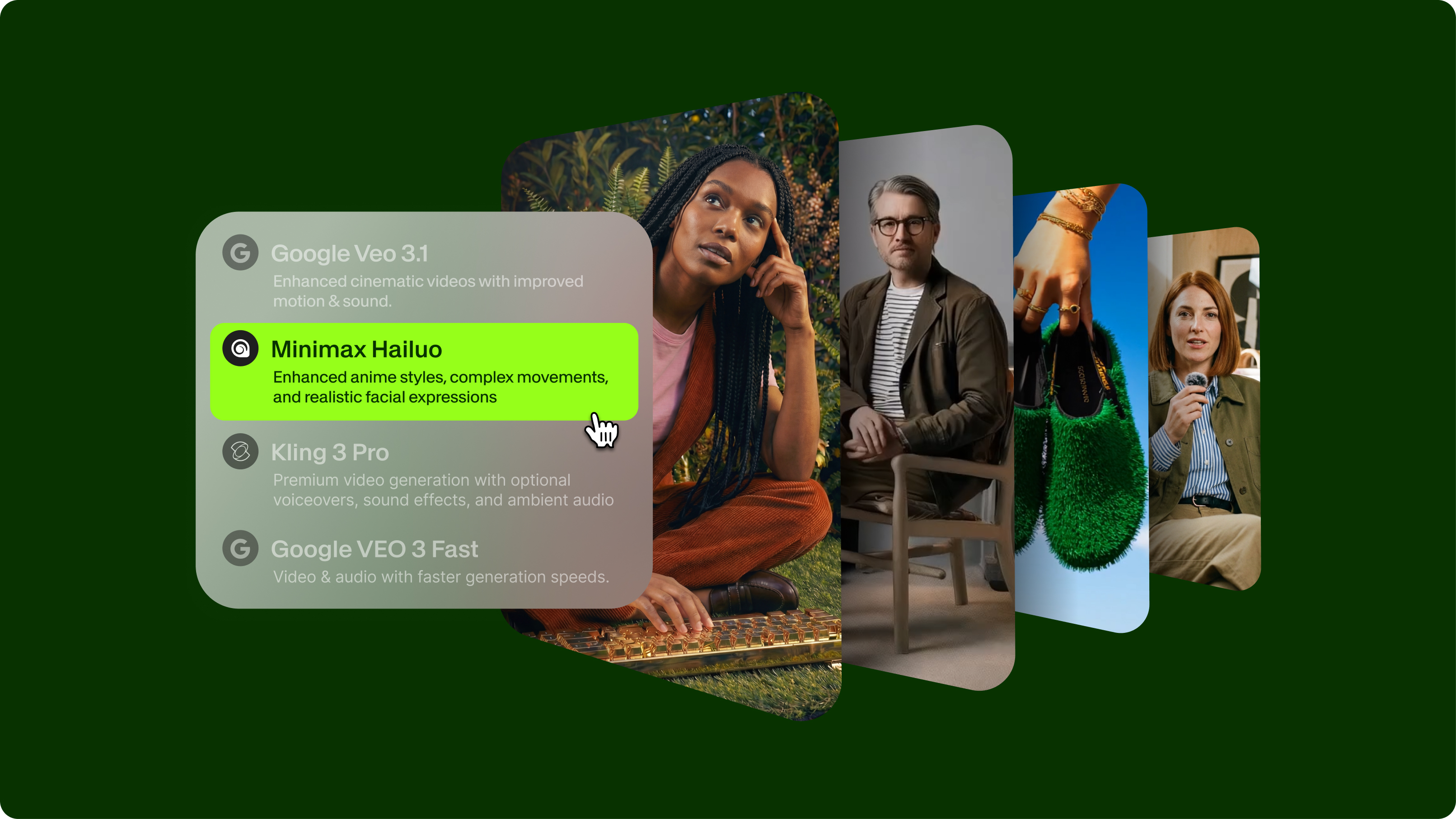
- Access DALL-E through VEED's AI Playground for streamlined workflows alongside other leading AI image generators in one platform
- DALL-E 3 generates 1024x1024 images in 10-30 seconds and works best with detailed, descriptive prompts that specify style, composition, and technical details
DALL-E is OpenAI's text-to-image AI model that transforms written prompts into original images. DALL-E 3, the current version, delivers photorealistic results, artistic interpretations, and concept visualizations, with improved prompt understanding compared to earlier versions. This DALL-E tutorial walks you through accessing the tool via VEED's AI Playground, generating your first images, and optimizing results for professional use.
Content creators, marketers, and designers use DALL-E for social media graphics, concept art, product mockups, and visual storytelling. This guide covers everything from account setup to advanced prompting techniques.
What you need to get started
Access requirements:
- VEED account
- Access to VEED's AI Playground
- Basic understanding of descriptive writing for prompts
Quick preparation tips:
- Write descriptive prompts: DALL-E 3 understands detailed descriptions better than short keywords
- Specify style and format: Include artistic style, medium, lighting, and composition details
- Know the limits: DALL-E cannot generate images of real public figures or copyrighted characters
Step-by-step: How to use DALL-E in VEED's AI Playground
Step 1: Access VEED's AI Playground
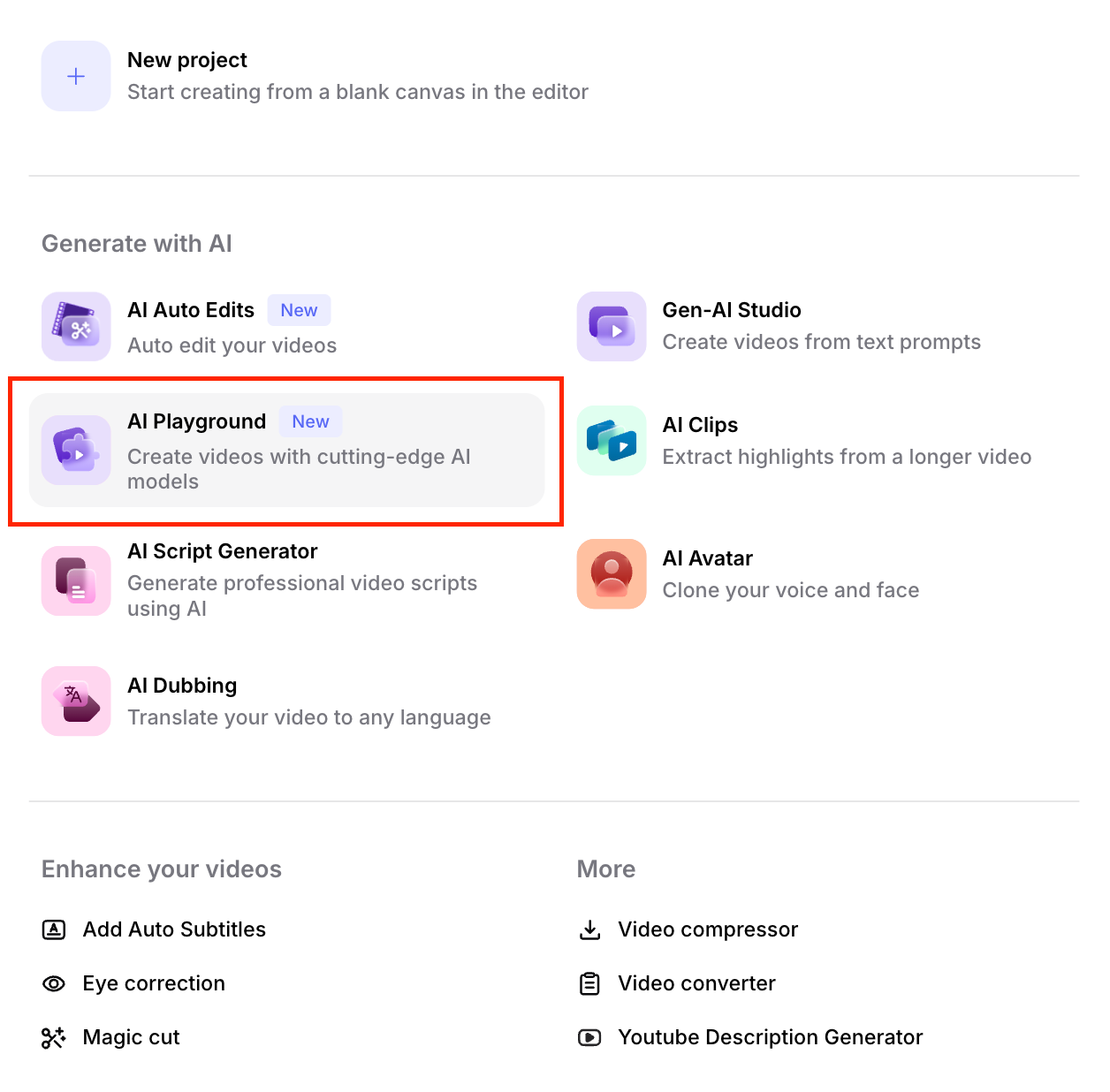
Navigate to VEED's AI Playground and sign in to your VEED account. If you don't have an account, create one. It takes less than a minute.
Once logged in, you'll see the AI Playground dashboard with multiple AI tools available. Locate the AI Image Generator section.
Step 2: Select DALL-E as your model
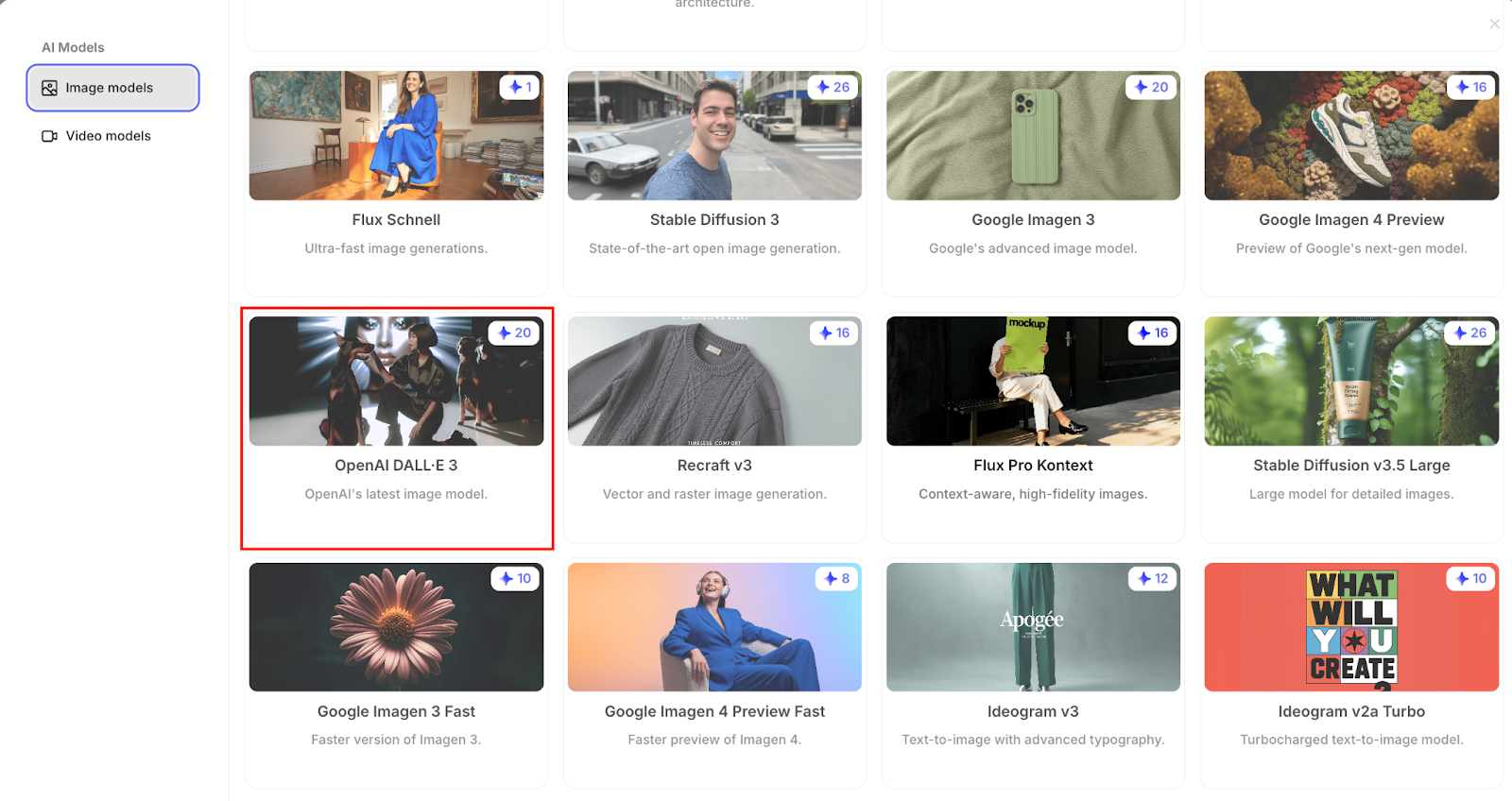
In the AI Image Generator interface, you'll see a dropdown or selection menu for different AI models. Select DALL-E from the available options.
VEED's AI Playground lets you compare multiple models, so you can generate with DALL-E and switch to alternatives like Midjourney or Stable Diffusion for comparison without leaving the platform.
Step 3: Write your DALL-E prompt
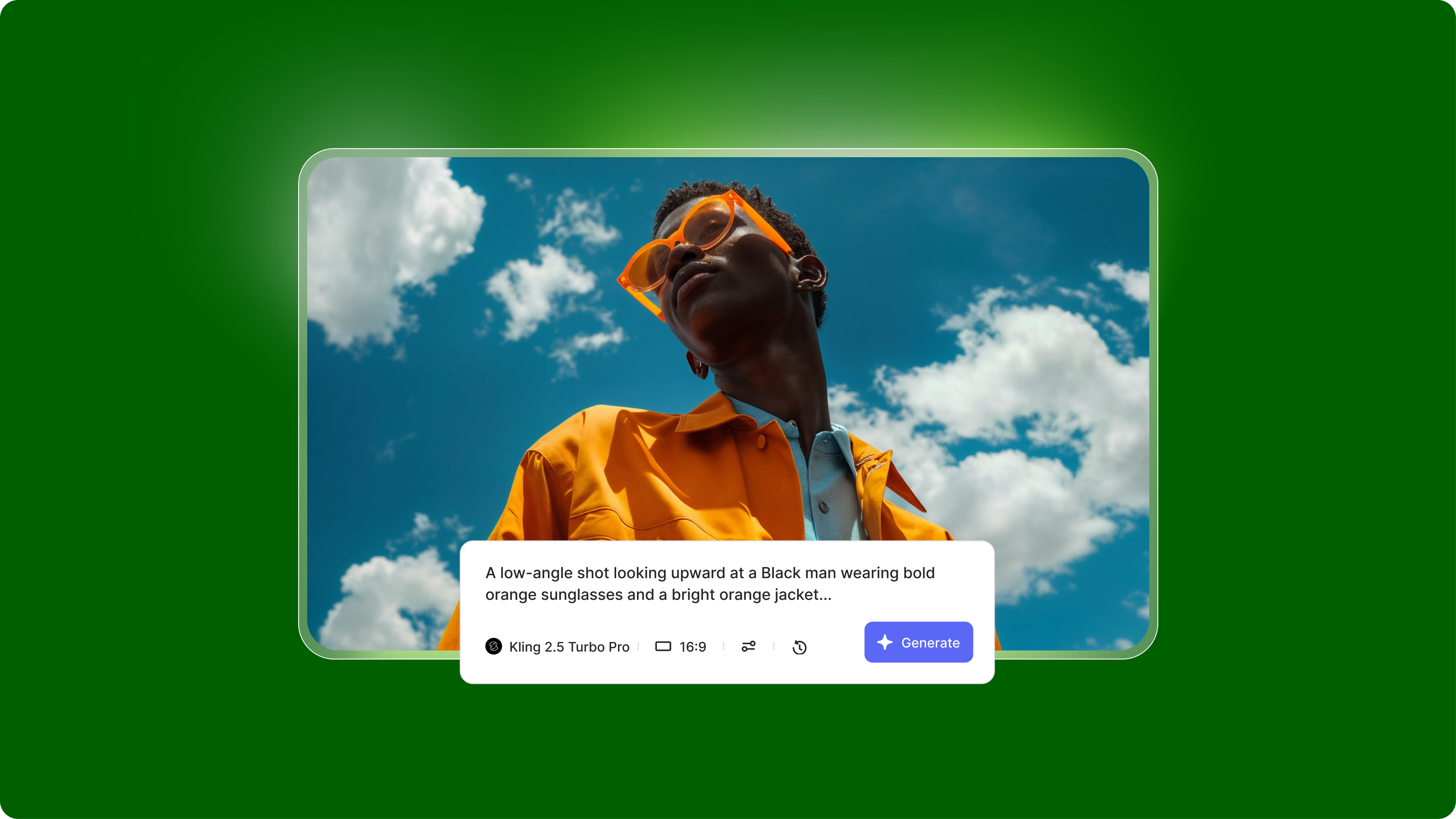
The DALL-E prompt is the most critical factor in output quality. Type your description in the prompt text box.
Basic prompt structure:
[Subject] + [Action/Pose] + [Environment/Setting] + [Style] + [Technical details]
Example prompt: "A golden retriever wearing sunglasses sitting on a beach chair, tropical sunset background, digital art style, vibrant colors, 4k resolution"
Do's:
- Be specific about composition, colors, and mood
- Include style references ("oil painting," "3D render," "minimalist illustration")
- Specify perspective and framing ("close-up," "aerial view," "wide angle")
Don'ts:
- Use vague terms like "cool" or "nice" without context
- Request copyrighted characters or real people's likenesses
- Exceed 400 characters (prompt gets truncated)
Step 4: Configure your settings
Before generating, adjust available parameters in VEED's interface:
Aspect ratio options:
- Square: 1024x1024 (social media posts, profile images)
- Landscape: 1792x1024 (YouTube thumbnails, banners)
- Portrait: 1024x1792 (Instagram stories, vertical designs)
Number of variations: Select how many image variations you want DALL-E to generate (typically 1-4 options).
Quality settings: Choose standard or high-quality output depending on your needs and available credits.
Step 5: Generate your image
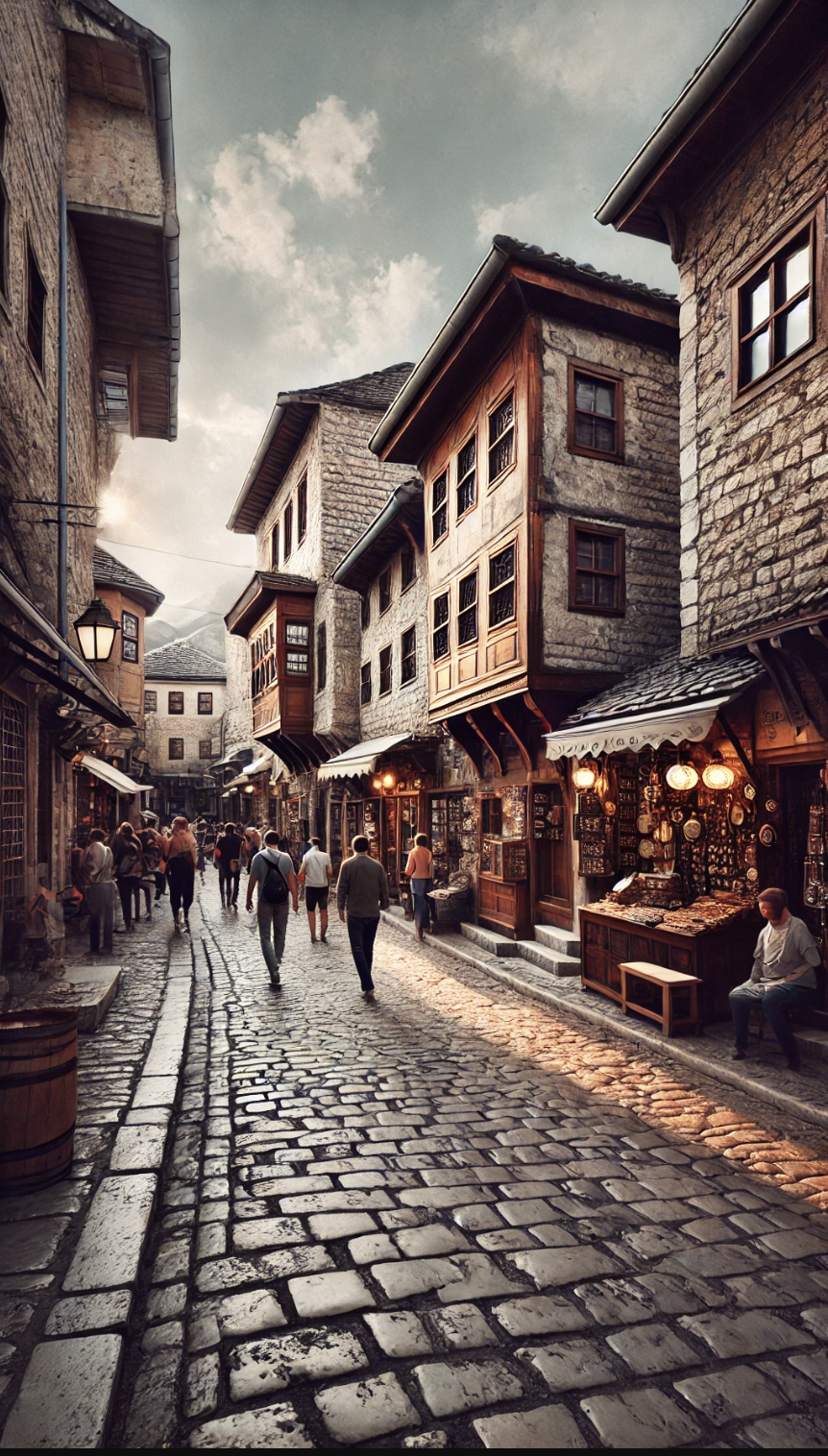
Click the "Generate" button.
Processing time: 10-30 seconds, depending on server load and queue. You'll see a progress indicator while DALL-E creates your image.
What you'll receive: VEED displays your generated images in the preview area. You can generate multiple variations and compare them side by side.
Review your results: Check if the output matches your vision. DALL-E 3 is highly accurate but may misinterpret some details.
Step 6: Refine and edit (optional)
If your first result isn't perfect, you have options:
Modify your prompt: Adjust the original prompt with more specific details or different style descriptors, then regenerate.
Try variations: Request slight variations by tweaking one element: "Make the sky more purple" or "Change to nighttime setting."
Compare with other models: Switch to another AI image generator in VEED's AI Playground to see how different models interpret the same prompt.
Step 7: Download and use your images
Once you're satisfied with the results:
Click the download button on your preferred image. VEED saves it directly to your device.
File format: Images download as high-resolution PNG files.
Integration with VEED's editor: Send your generated image directly to VEED's video editor to incorporate it into video projects, presentations, or social media content without leaving the platform.
Tips for better DALL-E results
Tip 1: Layer descriptive details. Instead of "a cat," try "a fluffy Persian cat with blue eyes, sitting on a velvet cushion, soft window lighting, photorealistic." More context yields better results.
Tip 2: Reference art styles and artists. Use style descriptors such as "in the style of Studio Ghibli," "baroque painting," or "isometric game art" to achieve consistent aesthetic results.
Tip 3: Compare models in AI Playground. Generate the same prompt across DALL-E, Midjourney, and Stable Diffusion to find which model best suits your specific visual needs.
Tip 4: Use negative space intentionally. Specify "with empty space on the left for text overlay" or "centered on white background" when creating designs for graphics or presentations.
Troubleshooting common issues
Getting started with DALL-E
DALL-E 3 makes AI image generation accessible through VEED's AI Playground, where you can create professional images and seamlessly integrate them into your video editing workflow. Focus on descriptive prompts, iterate based on results, and experiment with styles to find what works for your needs.
Try DALL-E alongside other leading AI image generators in VEED's AI Playground to compare outputs and find the best model for each project.