Kling AI Prompts: Complete Guide for All Models (2026)

Summary / Key Takeaways
- Kling AI prompts need four parts: Subject (specific details) + Action (precise movement) + Context (3-5 elements max) + Style (camera, lighting, mood).
- Each model has different limits: O1 handles complexity, 2.5 Turbo Pro needs 3-4 elements max, 2.6 supports 5-7 elements, and 1.6 requires simplified prompts.
- Text-to-video needs full scene descriptions; image-to-video only needs motion instructions (never redescribe what's in the image).
- Five common failures: too many elements cause overload, missing camera creates static shots, innocent words trigger filters, open-ended motion causes 99% hangs, and vague spatial language creates distortions.
- Always specify camera movement ("tracking shot following from side") and add motion endpoints ("then settles back into place") to prevent failures.
You've generated dozens of Kling AI videos. Some look perfect. Others have fingers that morph, or camera angles you never asked for, or they sit at 99% for hours. The confusing part? You can't figure out why some prompts work and others don't.
Kling AI offers four models (O1, 2.5 Turbo Pro, 2.6, and 1.6 Standard) but doesn't document the distinct prompt requirements for each. The interface doesn't explain that camera movement needs specific language, or that image-to-video prompts work differently from text-to-video, or which words might trigger the content filter. You learn by burning credits on failed generations.
Every failed generation costs credits. Every 99% hang wastes time. And you're left guessing what changed between the prompt that worked and the one that didn't.
New to Kling's models? Check our guide on how to use Kling AI. This guide addresses the following prompts: what makes them work consistently across models, which structures prevent failures, and how to stop the guessing game.

The Kling AI prompt formula (designed for cross-model reliability)
Most Kling AI prompts fail because they ignore the platform's specific requirements and model variations. This formula accounts for what actually works across all Kling models.
The 4-part universal structure for Kling AI prompts

Each element in a Kling AI prompt serves a specific purpose in guiding the AI toward your intended result. Missing any component forces the model to make assumptions, which often leads to outputs that miss the mark entirely.
The formula in action: Before vs. After
Priority hierarchy when space is limited
Sometimes you need to work within tighter constraints. When you're crafting shorter prompts (under 50 words total), you'll need to make strategic decisions about what to include. Prioritize the elements in this order:
- Subject + Action (who/what and what they're doing): Determines what actually appears in your video, so never skip it. Without this, the AI has no clear focus.
- Camera behavior (how we see it): Controls the cinematography and professionalism of your shot. Specifying how we know the subject, like the framing, movement, and perspective, separates amateur-looking output from polished, intentional footage.
- Context basics (simplified environment): When space is tight, you can establish location with just 2-3 key elements rather than a full environmental description. The AI can fill in reasonable defaults for a "modern office" or "outdoor park" without you detailing every element.
- Style elements (lighting and mood): Add polish and emotional resonance, but keep brief when necessary. A simple "soft natural lighting" or "energetic mood" goes a long way, even in compressed form.
Here's what a minimal but effective prompt looks like at just 42 words:
.png)
Notice how it covers all four components while keeping each lean. The subject and action are specific but concise. Camera behavior is implied through the close focus on knife work. Context establishes the setting with just three elements (counter, restaurant, spotlighting). Style comes through in the mood descriptor at the end.
Model-specific prompt optimization
The four-part formula gives you a universal structure, but each Kling model interprets prompts differently. Understanding these model-specific differences saves you from burning credits on trial and error. Let's break down the prompting strategy for each model so you can optimize for the one you're using.
Kling O1: Video-to-video editing prompts
Kling O1 represents a fundamentally different approach to AI video generation. While other models create videos from scratch, O1 works with existing footage, allowing you to edit videos using simple text prompts. This capability changes how you need to structure your prompts entirely.
The key difference is that O1 uses Multi-Elements mode for video editing operations. To use it, you describe the specific changes you want made to existing footage. This means your prompts need to be surgical, pointing to exact elements and stating precisely what should change.
Prompting strategy for O1
Strategy 1. For video editing operations:
When you're using O1 for video editing, your prompts need explicit action verbs that tell the AI exactly what operation to perform. The language matters here:
- Use explicit action verbs: "swap," "replace," "add," "remove," "restyle."
- Be specific about what element to change: "swap the blue shirt for a red dress."
- Reference the element's location if needed: "remove the object in the background left."
- Describe the desired result clearly: "add falling snow effect throughout the scene."
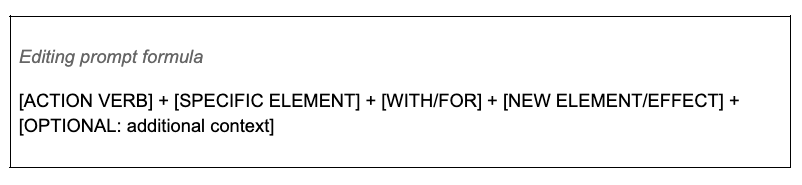
Here are some examples of weak vs. strong prompts:
Strategy 2. For O1 text-to-video generation
When you're not editing but generating new videos with O1, you can use the same four-part formula as other models. However, O1's Chain of Thought reasoning gives it an advantage: it can handle more complex prompts without failing. This means you can add more detail, specify multi-step camera movements, or include environmental changes that would overwhelm simpler models.
O1 handles complex camera movements well. You can write prompts like "Start with aerial view, descend to ground level, then tracking shot," and O1 will reason through the sequence. It also manages multi-step actions: "Subject walks to the door, pauses, then opens it and steps through." Even detailed environmental changes work: "Scene transitions from day to night with street lights gradually illuminating."
Kling 2.5 Turbo Pro (text-to-video): Speed-optimized prompts
Speed is 2.5 Turbo Pro's defining characteristic. This model processes faster than any other Kling option, making it ideal for high-volume content creation and time-sensitive projects. But that speed comes with specific requirements. To maintain fast generation times, 2.5 Turbo Pro needs streamlined prompts that don't bog down processing with excessive complexity.
Prompting strategy for 2.5 Turbo Pro:
The key to unlocking 2.5 Turbo Pro's speed is playing to its strengths.
- Clear sequential actions: When you structure actions using "First... then... finally" or similar progressive language, the model processes them efficiently.
- Straightforward camera movements: Single movements like "tracking shot" or "slow zoom in" work best rather than complex choreography.
- Simplified environments: Keep your context to 3-4 elements maximum. Each additional element adds processing overhead, and with 2.5 Turbo Pro, that overhead comes directly out of your speed advantage. If you're listing more than four distinct objects or locations, you're probably overloading it.
- Direct subject descriptions: Specific but not overly complex. "Woman in red athletic wear" is better than "Woman in red Lycra athletic wear with moisture-wicking fabric and reflective strips." The first provides sufficient detail for a clear image; the second adds processing overhead without much visual benefit.
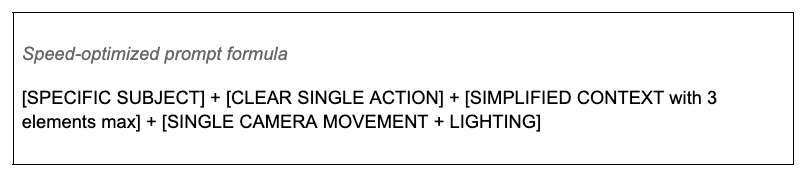
Here's what a prompt optimized for 2.5 Turbo Pro's speed looks like for social media content:

Count the elements: woman, path, and skyline, for a total of three components. One camera movement. One lighting description. One mood. This generates fast because nothing in the prompt creates processing bottlenecks.
Here’s what you need to avoid when working with 2.5 Turbo Pro:
- Complex multi-step camera choreography (save that for O1)
- Environments listing 7+ individual elements
- Highly detailed texture requirements that force the model to process fine details
- Multiple simultaneous actions that require parallel processing
Kling 2.6: Advanced detail prompts
Kling 2.6 represents the latest generation of the technology, and it shows. This model handles complexity that earlier versions would crash on, producing improved realism and better results with detailed prompts. If you're creating content that requires nuance, rich environments, or sophisticated visual effects, 2.6 is your model.
Prompting strategy for 2.6:
With 2.6, you can leverage capabilities that simply aren't available in simpler models.
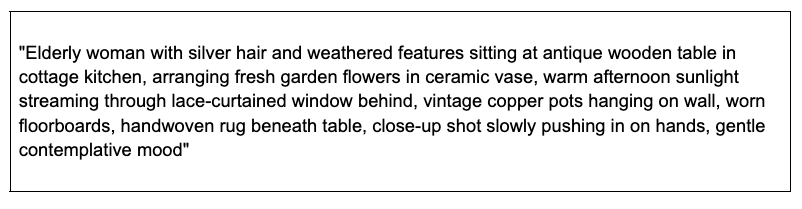
- Detailed environmental descriptions: You can include 5-7 distinct elements without performance degradation.
- Complex lighting setups: Prompts like "Soft key light from camera right mixed with warm practical lamp" are interpreted accurately rather than simplified away.
- Nuanced expressions and micro-movements: You can specify details such as "Slight smile forming" or "eyes glistening with emotion," and 2.6 will render those subtle details.
- Layered atmospheric effects: Prompts like "Light mist at ground level with sun rays filtering through trees" deliver a sophistication that makes videos look professionally shot.
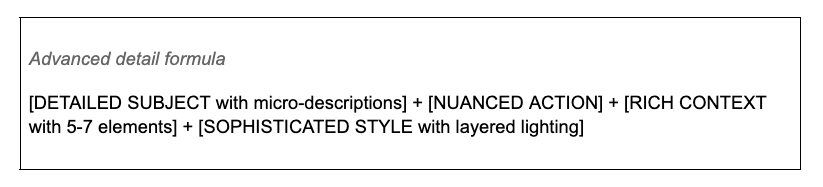
Here's what a prompt optimized for Kling 2.6 looks like with a complex environmental scene:
Kling 1.6 Standard: Simplified reliable prompts.
Kling 1.6 Standard might not have the advanced capabilities of newer models. Still, it offers two significant advantages: it's the most cost-effective option and includes the exclusive Motion Brush feature for manual control. This model has a proven track record of reliability when you respect its limitations.
Prompting strategy for 1.6:
The key to success with 1.6 is keeping everything straightforward.
- Clear single subjects: This model works best with clear single subjects – one primary focus per generation, rather than multiple characters or objects competing for attention.
- Simple actions: Use only one primary movement. Avoid multi-step sequences that require the model to track complex changes.
- Limited environments: Environmental descriptions should be limited to 2-3 elements maximum.
- Basic camera movements: Pick one movement (such as tracking, static shots, or a slow zoom) and stick with it rather than trying to choreograph multiple camera changes.
Simplified reliable formula
[SINGLE CLEAR SUBJECT] + [ONE PRIMARY ACTION] + [MINIMAL CONTEXT 2-3 elements] + [BASIC CAMERA + SIMPLE LIGHTING]
Here's a simple but effective prompt optimized for Kling 1.6.

The Motion Brush feature gives 1.6 a unique advantage. When you upload an image to animate, you can use the Motion Brush to manually select exactly which area you want animated and draw the motion path yourself.
The process is straightforward:
- Upload your image.
- Write a simple motion prompt like "Subject's hair moves gently in the breeze."
- Use the Motion Brush to select the exact area (just the hair).
- Draw the motion path with your cursor.
- Generate.
This level of precise control isn't available in newer models, making 1.6 valuable for specific use cases that require exact animation control.
Text-to-video vs. image-to-video prompting
One of the biggest mistakes users make is treating text-to-video and image-to-video prompts the same way. They're fundamentally different operations that require entirely different prompting approaches. Understanding this distinction will save you from one of the most common failure modes in Kling AI.
Text-to-video (TTV) prompting
When you're generating video from text, you're asking the AI to build everything from scratch. There's no existing visual reference, no source material to work from. The AI needs to construct every element you want to see, which means your prompt must provide a complete scene description.
TTV prompt must include:
- Every visual element in the scene
- Complete camera behavior (position, movement, framing)
- All lighting sources and qualities
- Full environment description
- Subject details and actions

Here's what a complete scene-building prompt looks like:
"Professional female cyclist in yellow racing jersey and black shorts riding road bike along coastal highway, pedaling steadily uphill with focused expression, winding two-lane road curves along clifftop with Pacific Ocean visible below, late afternoon golden hour sunlight, wide tracking shot following from behind and slightly above, warm side lighting creating long shadows on pavement, determined athletic energy, sports documentary style"
Why does this work for text-to-video? Because it builds the entire scene from nothing.
- The subject is completely described: You know exactly what the cyclist looks like, what she's wearing, and her expression.
- The action is clearly defined: She's riding uphill, pedaling steadily, with focused determination.
- The environment is fully built: coastal highway, clifftop, ocean below, winding road.
- The camera is comprehensively directed: Wide shot, tracking from behind and slightly above.
- The lighting is fully specified: late-afternoon golden hour, warm side lighting, long shadows.
- The mood is established: Determined, athletic, documentary style.
Image-to-video (I2V) prompting
Image-to-video prompting works in the opposite direction. You've already provided the visual elements by uploading an image. The subject, environment, lighting, and composition – all of that already exists in your source material. The AI can see it. What the AI needs from you is motion description: what should move, how it should move, and what should stay still.
This is where users often go wrong. They upload a portrait photo and write: "Woman with long dark hair in business attire in modern office with window behind, soft natural lighting, professional atmosphere." The AI already sees all of that in the image. You're not adding information; you're creating confusion by describing what's already visible.
Here’s what your I2V prompt should focus on:
- What moves and how it moves
- What stays static
- Motion speed and character
- Optional: minor camera movement

Here are I2V good vs. bad prompt examples:
Here are some key principles for I2V to remember:
- Never redescribe what's already in the image.
- Focus exclusively on motion instructions.
- Be specific about what moves versus what stays still. The AI needs this distinction.
- Keep your prompts shorter than text-to-video, typically 20-40 words versus 50-80 words for TTV.
Fixing the three most annoying Kling AI prompt failures
Even with a solid understanding of prompt structure, Kling AI users still encounter frequent failures. These aren't just random glitches on the AI’s end, but they’re predictable problems that stem from specific prompting mistakes. Once you understand the pattern, you can avoid them entirely.
Error #1: Generation failure from overly complex prompts
You'll know this failure when you see it: your generation simply fails to complete, or it produces garbled, unusable output. This occurs most often with the 1.6 Standard and 2.5 Turbo Pro, which have tighter complexity limits. The problem isn't the model's capability. It's that your prompt has overwhelmed the processing system with too many elements, too many simultaneous actions, or too much fine detail.
The prompting fix: Lessen the number of elements
The key technique here is element counting. Before you submit any prompt, count every noun. If you have more than 4-5 distinct elements, you risk failure with simpler models.
The fix is combining multiple items into categories. Instead of listing "marble tables, pendant lights, exposed brick, menu boards, shelves, plants, floor," use "modern coffee shop interior." The AI understands the category and populates it with reasonable elements without you having to specify each one.
Before and after examples
Error #2: Videos stuck at 99% from missing end guidance
This failure is particularly frustrating because it wastes time rather than just credits. Your video sits at 99% completion for hours, sometimes days. Eventually, you give up and cancel it, having learned nothing about what went wrong. This occurs most often in image-to-video generation and stems from a specific problem: the AI doesn't know how to end the video.
When you give an open-ended motion instruction, the AI starts rendering the movement but has no clear endpoint to work toward. It keeps processing, trying to determine when the motion should conclude, and eventually gets stuck in an infinite loop at 99% progress.
The prompting fix: Add an end state description.
The key technique is to include a conclusion for each motion, especially in image-to-video work. Every motion should have a clear end state. You can use phrases like "then settles into position," "returning to stillness," "coming to rest," "then stops," "settling back to original position," or "motion gradually slowing to stop."
Example fixes
Additional 99% prevention
Beyond adding endpoints to your prompts, you can prevent 99% hangs in other ways.
- If your platform supports it, upload a black end frame image to signal completion. This gives the AI a visual target to render toward.
- Keep I2V duration shorter; 5-second generations hang less often than 10-second ones because there's less motion to track.
- Generate during off-peak hours, typically late at night or early in the morning, when server load is lower and processing resources are more available.
Error #3: Morphing errors and distorted objects
This is the failure that produces the most visually disturbing results. Fingers that multiply or melt, objects that pass through each other like holograms, physics that breaks in obvious ways. These morphing errors and distortions occur when your prompt contains vague spatial relationships or ambiguous object interactions.
The AI needs explicit spatial language to understand how objects relate to each other, especially for complex interactions involving hands, faces, and physics. When you're vague about these relationships, the AI makes guesses, and those guesses often produce distortions.
The prompting fix: Use explicit spatial language.
The key vocabulary for preventing these errors includes contact-point descriptions such as "making contact with," "positioned near," and "touching." Directional flow, such as "moving from X to Y" or "traveling toward." Explicit positioning like "left hand gripping" or "fingers wrapped around." Confirmation details like "visible inside" or "creating connection."
Example fixes
For hands specifically, specific strategies minimize distortion.
- Avoid extreme close-ups: "Medium shot of hands" is safer than "extreme close-up of fingers" because less detail means less opportunity for the AI to misinterpret articulation.
- Limit complex articulation: "Hands holding object" is safer than "hands typing on keyboard" or "hands playing piano" because simple grip positions are easier to render than complex finger movements.
- Keep hands slightly out of focus when possible: "Background shows hands working at desk" puts the detail pressure elsewhere.
- Use static positions when you can: "Hands resting on surface" requires no motion tracking.
Prompt length and complexity guidelines
Understanding the right prompt length for your situation prevents both under-specification and over-complexity. There's no single ideal length. It varies by AI model and mode, and finding the sweet spot for your specific use case makes the difference between reliable generations and frustrated experimentation.
For text-to-video:
- 1.6 Standard: 30-50 words (simple, focused)
- 2.5 Turbo Pro: 40-60 words (clear, streamlined)
- 2.6: 60-100 words (can handle more detail)
- O1: 50-100+ words (handles complexity best)
For image-to-video:
- All models: 15-40 words (motion description only)
General prompt length guidelines
Prompts under 30 words are usually too vague unless you're doing simple image-to-video work. The AI needs sufficient information to understand your intent, and most text-to-video concepts require at least 30 words to adequately specify the subject, action, context, and style.
The sweet spot for most models and most use cases is 30-60 words. This range provides enough room to specify all four components of the formula without overloading the processor. If you're unsure where to start, start here.
Prompts in the 60-100-word range are advanced territory. Use this length with Kling 2.6 or O1 when you're creating complex scenes that genuinely require additional detail. Make sure each additional word adds necessary information, not just padding.
In over 100 words, you risk confusing the AI or causing processing issues, even on advanced models. Very long prompts create opportunities for contradictory instructions, processing bottlenecks, and failures. If your prompt is exceeding 100 words, look for opportunities to simplify or combine elements.
Signs your prompt is too complex
You'll know your prompt is too complex when you see sure signs.
- More than seven distinct elements or objects in your description typically signal overload.
- Multiple complex camera movements, like "start wide, push in, pan left, crane up, usually overwhelm the AI's ability to track changes.
- Over three sequential actions in a single prompt creates timeline confusion.
- Generation failures or very slow processing (multiple hours) indicate your prompt exceeded the model's comfortable complexity range.
Signs your prompt is too simple
Conversely, your prompt is too simple when you see other problems.
- Generic results that don't match your vision suggest you haven't provided enough specific guidance.
- Random elements appearing that you never mentioned indicate the AI is filling gaps because you left too much undefined.
- Unclear camera framing means you didn't specify how the scene should be shot.
- No defined lighting or mood produces flat, generic-looking videos without visual interest.
Recap and final thoughts
You now have the complete framework for writing Kling AI prompts that work reliably across all models. Let's consolidate what you've learned into an actionable plan you can implement immediately.
- Master the four-part universal formula: Subject (specific visual details) + Action (precise movement) + Context (environment with 3-5 elements) + Style (camera, lighting, mood). This structure works across all Kling models.
- Optimize for your specific model: O1 handles complexity and editing; 2.5 Turbo Pro requires simplified, speed-optimized prompts; 2.6 leverages advanced detail; and 1.6 requires a straightforward, reliable structure.
- Know the difference between TTV and I2V: Text-to-video requires a complete scene description with all elements, camera, and lighting. Image-to-video focuses only on motion instructions.
- Apply the three prompt-based error fixes: Reduce element count for complexity failures, include end-state descriptions to prevent 99% hangs, and use spatial relationship language for physics reliability.
The difference between burning through credits on failures and generating reliably lies in understanding Kling AI's specific requirements and each model's strengths and limitations. You now have the formulas, model-specific optimizations, error fixes, and practical guidelines to consistently generate professional videos.
Ready to start generating? Access all Kling AI models through VEED's AI Playground, where you can test these prompting techniques across O1, 2.5 Turbo Pro, 2.6, and 1.6 Standard, edit your results, and refine your approach without platform-hopping.
FAQ
The most effective Kling AI prompt structure follows four key components: [Subject] describing who/what with specific visual details, [Action] defining what happens with precise movement, [Context] establishing environment and setting with 3-5 elements maximum, and [Style] including camera movement, lighting quality, and mood.
Optimal prompt length varies by model: For text-to-video, use 30-50 words with Kling 1.6 Standard, 40-60 words with 2.5 Turbo Pro, and 60-100 words with 2.6 or O1 for complex scenes. For image-to-video, keep prompts to 15-40 words and focus only on motion instructions, since visual elements already exist in your source image. Prompts under 30 words are usually too vague, while those over 100 words risk confusing the AI or causing processing failures.
Text-to-video (TTV) requires a complete scene description because you're building everything from scratch. Include subject details, a full environment with all elements, comprehensive camera direction, a complete lighting setup, and the overall style. Image-to-video (I2V) requires only motion descriptions, since the visual elements already exist in the source image. Focus on what moves and how it moves, motion speed and character, what stays static, and optional minor camera movement.
Videos that get stuck at 99% typically result from missing end-state guidance in prompts, especially for image-to-video tasks. The AI doesn't know how to conclude the video, causing processing to hang. Fix this by adding clear endpoint descriptions: instead of "hair moves in wind," use "hair gently moves in breeze, then settles back into place." Other causes include server overload during peak hours (try generating late at night/early in the morning), overly complex prompts with 7+ elements, or high-resolution settings that require more computational resources.
Kling AI's NSFW filter is highly sensitive and blocks many innocent phrases. Avoid body-related terms like "shirtless," "bare feet," "exposed"; contact words in specific contexts like "touching" or "embracing"; and some settings combined with specific subjects like "bedroom." Instead, reword strategically. Focus on describing clothing rather than the lack of it, and use formal technical terms rather than casual language.