How to Use Sora 2 to Generate AI Videos on VEED

Summary / Key Takeaways
Summary:
- To use Sora 2, open VEED’s AI Playground, choose the Open AI Sora 2 AI model, and enter a text prompt describing the video you want to create. Select your desired aspect ratio and let Sora 2 generate your desired video.
- Write detailed prompts using the six-part formula (camera, subject, action, location, lighting, style) for professional results.
- Edit your AI-generated videos directly on VEED with text overlays, music, subtitles, and brand elements.
- Compare Sora 2 with other AI video models side by side to identify the best tool for each project.
OpenAI's Sora 2 is transforming how creators produce video content, generating stunning videos from simple text prompts in minutes. But if you've been frustrated by complex signup processes, waitlists, or expensive subscriptions, there's a more straightforward way to get started.
VEED's AI Playground gives you immediate access to Sora 2. You can start generating professional AI videos right now, with the added benefit of exploring multiple AI video models in one unified platform.
This guide walks you through everything you need to know:
- Accessing Sora 2 via VEED's AI Playground
- Writing effective prompts
- Choosing the correct settings, and
- Creating your first AI-generated video
Whether you're a content creator, marketer, or curious experimenter, you'll be generating Sora 2 videos within minutes. Plus, you can edit them instantly using VEED's integrated video editor.

What is OpenAI Sora 2?
Sora 2 is OpenAI's advanced text-to-video generation AI model that creates professional-quality videos from simple text descriptions. Unlike basic AI video tools, Sora 2 excels at understanding complex scenes and generating videos with remarkable realism.
So what makes Sora 2 so powerful?
- Realistic character movements and expressions: You get natural human gestures, facial animations, and body language that bring your ideas to life with authentic motion.
- Advanced physics simulation: Water flows naturally. Fabric moves with weight and texture. Smoke drifts realistically. Environmental interactions follow real-world physics laws.
- Consistent lighting and shadows: You get professional-grade illumination that stays consistent throughout the entire video. No jarring transitions. No unnatural lighting shifts that break the immersion.
- Smooth camera movements: Cinematic transitions, smooth pans, precise zooms, and dynamic tracking shots all work together to create footage that looks like it came from an actual film set.
Sora 2’s key capabilities
Sora 2 delivers technically impressive results right out of the box. You get 1080p HD quality with multiple aspect ratios to choose from, including 16:9 for landscape videos, 9:16 for vertical content, and 1:1 for square formats. Every frame maintains temporal consistency, which means the footage flows smoothly without glitches or discontinuities. The cinematic motion and composition give your videos that professional polish that viewers expect from high-quality content.
These technical capabilities translate into practical applications across multiple content types, including:
- Social media content and advertisements
- Product demonstrations
- Educational explainer videos
- Creative storytelling
- Marketing campaigns
- Business content
- Background footage for projects
When to use Sora 2 vs other AI models
Choosing the right AI model for your project makes a massive difference in your final results. Sora 2 shines in specific scenarios where its strengths align with your needs.
Pick Sora 2 when you need:
- Realistic motion and physics that follow real-world rules
- Cinematic camera movements like smooth tracking shots, dramatic zooms, or sweeping establishing shots
- Story-driven content that maintains consistency and emotional tone throughout
- High production value aesthetic that looks professionally filmed
Try other AI models in VEED's AI playground for:
- Stylized aesthetics like animation, 3D rendering, or artistic interpretations
- Faster generation times when you're working under tight deadlines
- Character consistency across multiple shots
- Different budget considerations or credit costs
The best thing about VEED's AI Playground is that you can experiment freely. Generate the same prompt across different AI models to compare results side by side. You'll quickly discover which tool produces the aesthetic and quality that matches your vision. Since everything happens on a single platform, switching between models takes seconds.
How to use Sora 2 on VEED
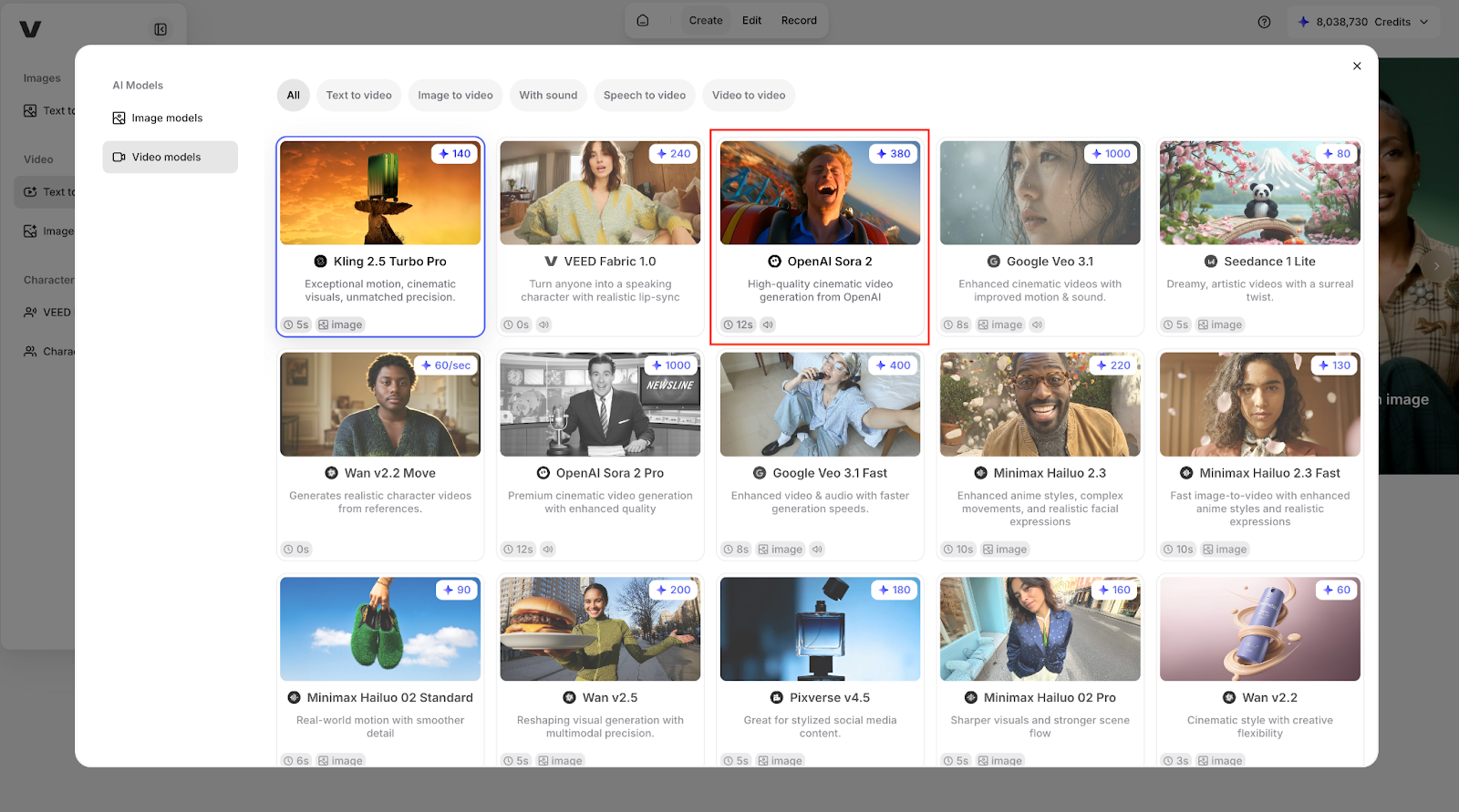
VEED's AI Playground offers the fastest route to using Sora 2. You get instant access without downloads or waitlists. You can switch between different AI models to find the right fit for every project. And when your video is generated, you can edit it immediately using VEED's powerful, beginner-friendly editor.
Here's how to get started with Sora 2 and VEED.
Step 1: Open VEED's AI playground.
Start by visiting veed.io/ai-playground. If you already have a VEED account, just log in. New users can sign up in seconds with an email address or social login. Once you're in, you'll land directly on the AI Playground dashboard.
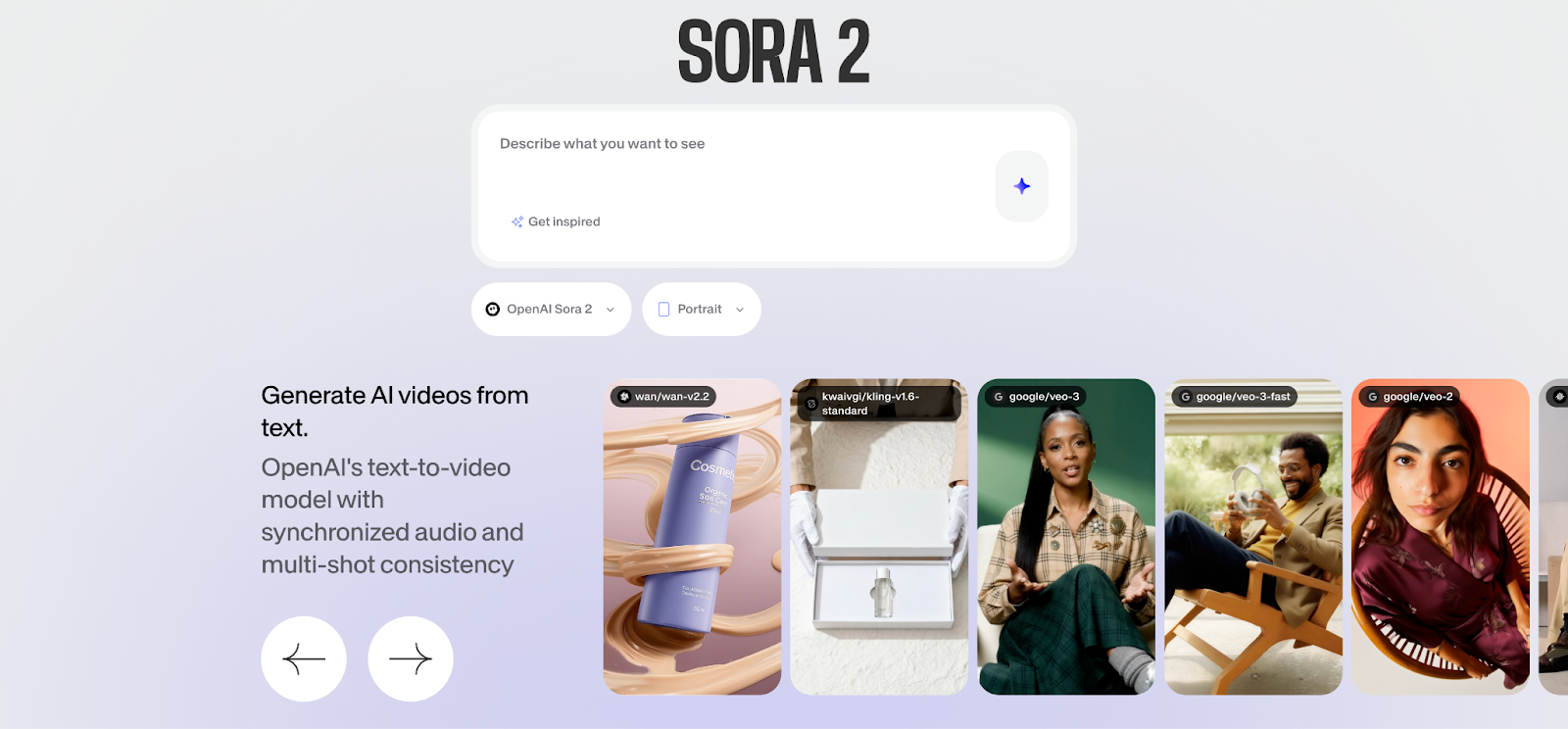
The AI Playground serves as your central hub for accessing multiple AI video generation models, including OpenAI Sora 2. The interface keeps things clean and intuitive, enabling you to create videos as quickly as possible.
Step 2: Select OpenAI Sora 2.
Look at the bottom of your screen to find the AI model selector. Click the dropdown menu that shows all available models. Scroll through the options until you see “OpenAI Sora 2” listed among the video models. Click it to select it.
The interface automatically updates to display Sora 2-specific settings. This is where the magic happens. You're now ready to transform your text descriptions into professional video content using one of the most advanced AI video generators available.
Step 3: Enter your text prompt.
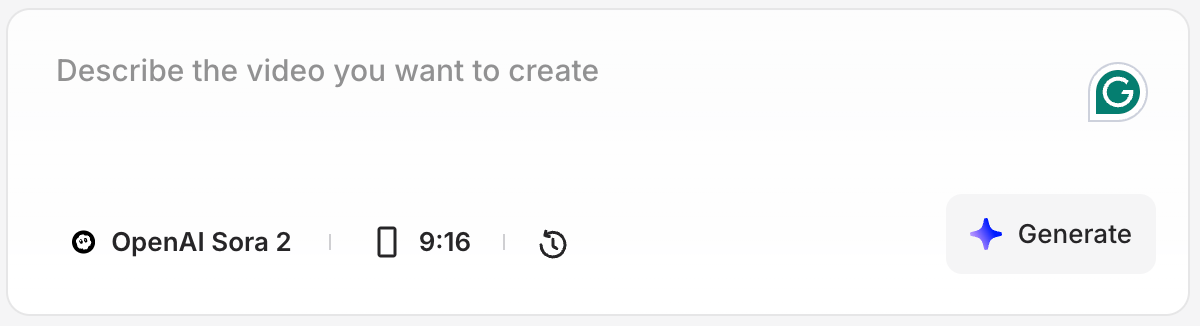
Find the text input box labeled "Describe the video you want to create." This is where you'll type your video description. Be specific about what you want to see:
- Include details about subjects, actions, settings, and visual style
- Aim for prompts between 40 and 60 words for optimal results
- Think of it as giving detailed instructions to a professional film crew
Your prompt is the creative blueprint for your video. The more specific and descriptive you write, the better Sora 2 understands and executes your vision. The clearer your direction, the better your final product turns out.
Step 4: Choose your aspect ratio.
You'll see aspect ratio options designed for different platforms and use cases:
- 16:9 (Landscape) for YouTube videos, presentations, and website content
- 9:16 (Portrait) for Instagram Reels, TikTok videos, and YouTube Shorts
Pick the format that matches where you plan to publish your video. Choosing the correct aspect ratio from the start saves you headaches later. Your video will look perfect on your target platform without awkward cropping or black bars.
If you're creating content for multiple platforms, you can generate the same prompt in different aspect ratios to get versions optimized for each destination.
Step 5: Generate your video.
Take a moment to review your prompt and settings. Make sure everything looks right. Then click the "Generate" button to start the process. Sora 2 will process your request within 2 to 5 minutes. Your video will appear in the preview player once the generation completes.
During generation, Sora 2 uses advanced AI to bring your text to life. The wait time varies based on the complexity of your video and server load. Most videos finish within a few minutes. Once complete, you can preview your creation directly in the player and decide if you want to edit it, regenerate with adjustments, or export it as is.
How to edit your Sora 2 Videos in VEED
Once your Sora 2 video is generated, VEED's integrated editing tools let you add finishing touches to make your content stand out. The workflow from generation to editing to export happens in a single session. You don't need to download files, open separate editing software, or work across multiple platforms.
Start by clicking "Edit Video" once the generation is complete. This opens your video in VEED's editor with all the tools you need.
Add text, trim clips, and apply filters
Add text overlays or captions to make your content more engaging for social media viewers. Trim sections to refine timing, or loop certain parts for emphasis. Apply filters or color corrections to enhance the visual style. Add background music or sound effects to create emotional impact and polish.
Brand your videos with intros, subtitles, and logos
Create intro and outro sequences to consistently brand your content. Add subtitles for accessibility and higher engagement (most social media videos play without sound initially). Include branded elements, such as logos or watermarks, to protect your content and build brand recognition. Combine multiple AI-generated clips into longer videos that tell more complete stories. Adjust pacing with speed controls or transitions to create the perfect rhythm for your message.
Export as MP4 or use social media presets
When you're ready to export, VEED makes it simple to get your video in the perfect format. Export as MP4 for universal platform compatibility. Use social media presets that automatically optimize your video for Instagram, TikTok, or YouTube with the correct specs. Choose custom resolution and bitrate settings if you have specific technical requirements. Or use direct upload to publish straight to social platforms without downloading and reuploading.
How to troubleshoot common issues with Sora 2
Having issues with your Sora 2 generations? Here are the most common issues and how to fix them quickly.
Generation takes too long
Several factors affect generation speed, and you can adjust your approach to get faster results:
- Try generating during off-peak hours, like early morning or late evening, when server demand is lower
- Simplify complex prompts that require more processing power
- Choose shorter video durations if the platform offers duration options
- Check your internet connection stability because slow uploads can make the process seem longer than it actually is
Generation times vary based on server demand and prompt complexity. If you're experiencing longer-than-usual wait times, these adjustments can speed up the process so you can iterate faster and reach your final result sooner.
Video doesn't match expectations
When your generated video misses the mark, specific adjustments usually fix the problem better than completely rewriting your prompt:
- Add more specific details about camera angle and movement to guide the visual framing
- Specify lighting conditions explicitly instead of leaving them implied
- Try different aspect ratios because some subjects work better in landscape while others shine in portrait format
- Regenerate with adjusted prompts rather than entirely new ones because AI results vary between generations
AI video generation inherently incorporates natural variation. The same prompt can produce slightly different results each time you run it. This variation is useful because it provides options. If your first generation isn't quite right, adjust specific elements of your prompt rather than starting from scratch. This targeted approach gets you to your desired result faster.
Quality issues
Quality problems often stem from trying to accomplish too much in a single video. Sora 2 performs best when given clear, focused directions:
- Avoid overly complex scenes with too many elements competing for attention
- Focus on one main subject or action per video
- Add descriptive words about visual quality, like "crisp focus" or "detailed textures," to guide the rendering
- Check the preview at full screen before downloading so you can catch any issues early
If you need a complex scene with multiple elements, consider generating several simpler videos and combining them in VEED's editor. This approach gives you greater control over each component and often produces higher-quality results than trying to generate everything in one go.
Recap and Final Thoughts
Key takeaways:
- Instant access via VEED: Use Sora 2 immediately through veed.io/ai-playground without waitlists or complex OpenAI subscriptions
- Simple four-step process: Select Sora 2, enter prompt, choose aspect ratio, generate—it's that straightforward
- Detailed prompts yield the best results: include subject, action, setting, lighting, and camera details to achieve professional-quality output.
- Integrated editing workflow: Polish your AI-generated videos with VEED's built-in editor before exporting
- Compare multiple AI models: Test Sora 2 alongside other AI video generators to find the perfect tool for each project.
Visit VEED's AI Playground now and try your first Sora 2 generation. Start with a simple prompt, such as the examples we mentioned earlier, to familiarize yourself with the interface.
Build a library of effective prompts based on your content needs. Experiment with different camera angles, lighting conditions, and styles. Combine AI-generated clips with traditional footage in VEED's editor to create unique, engaging content.
Ready to explore more AI video tools? Check out our guide to comparing AI video generators to discover which models work best for different content types.
FAQ
Sora AI is OpenAI's text-to-video generation model that transforms written descriptions into realistic video clips using advanced machine learning. Sora 2, the latest version, creates videos up to 20 seconds long in 1080p HD, featuring natural motion, realistic physics, and cinematic camera movements.
You can access Sora 2 through VEED's AI Playground at veed.io/ai-playground without waitlists or complex OpenAI subscriptions. VEED provides instant access and integrated editing tools on a single platform.
VEED offers a free tier with limited AI generations per month to test Sora 2. Paid subscription plans provide unlimited or increased generations, professional editing features, and watermark-free exports at a lower cost than OpenAI's direct pricing.
Visit veed.io/ai-playground, create a free VEED account or log in, and you'll immediately see Sora 2 among the available AI video models. The entire process, from sign-up to first generation, takes less than five minutes.
Yes, Sora 2 creates professional-quality video content with realistic physics, consistent lighting, smooth cinematic camera movements, and 1080p HD output. Content creators, marketers, businesses, and educators use it for social media campaigns, product demonstrations, brand storytelling, and explainer videos.