How to Use an AI Image-to-Video Generator to Make Social Video Worth Posting


You have one good product photo and a week of social posts to fill. Closing that gap usually costs a marketing team a full day of work. An AI image-to-video generator closes it: you upload the photo, describe the motion you want, and a few minutes later you have a short clip with camera movement and life in it, ready to caption and post.
Image-to-video works differently from the AI video most people have tried. Instead of asking a model to invent a scene from a text prompt, you hand it a still you already own, whether that's your product, your storefront, or your headshot, and its only job is to move it. That's why the output looks like your brand and why one shot can carry a week of content with no shoot and no crew.
Key takeaways
- An AI image-to-video generator animates a still you already own: a product shot, a screenshot, or a headshot.
- Image-to-video beats text-to-video for brand work because your approved asset is the first frame.
- Most people get stuck on the prompt. Templates give you a working structure to start from.
- Lead every prompt with the camera move, the light, and what must stay unchanged.
- Generation is half the job. Subtitles, fonts, colors, and logo decide whether the clip is worth posting.
There's a catch everyone who has tried these tools already knows. Most AI videos look like AI videos. They’re generic, they float, you can spot them from across the room, and they still go out under your name. What usually fixes this is a better starting image, a more specific prompt, and the branding work most generation tools leave to you. This guide covers how image-to-video works, when to use it over text-to-video, how to write prompts that produce something you can post, and how to finish the clip so it looks like your brand made it, not AI.
What is an AI image-to-video generator?
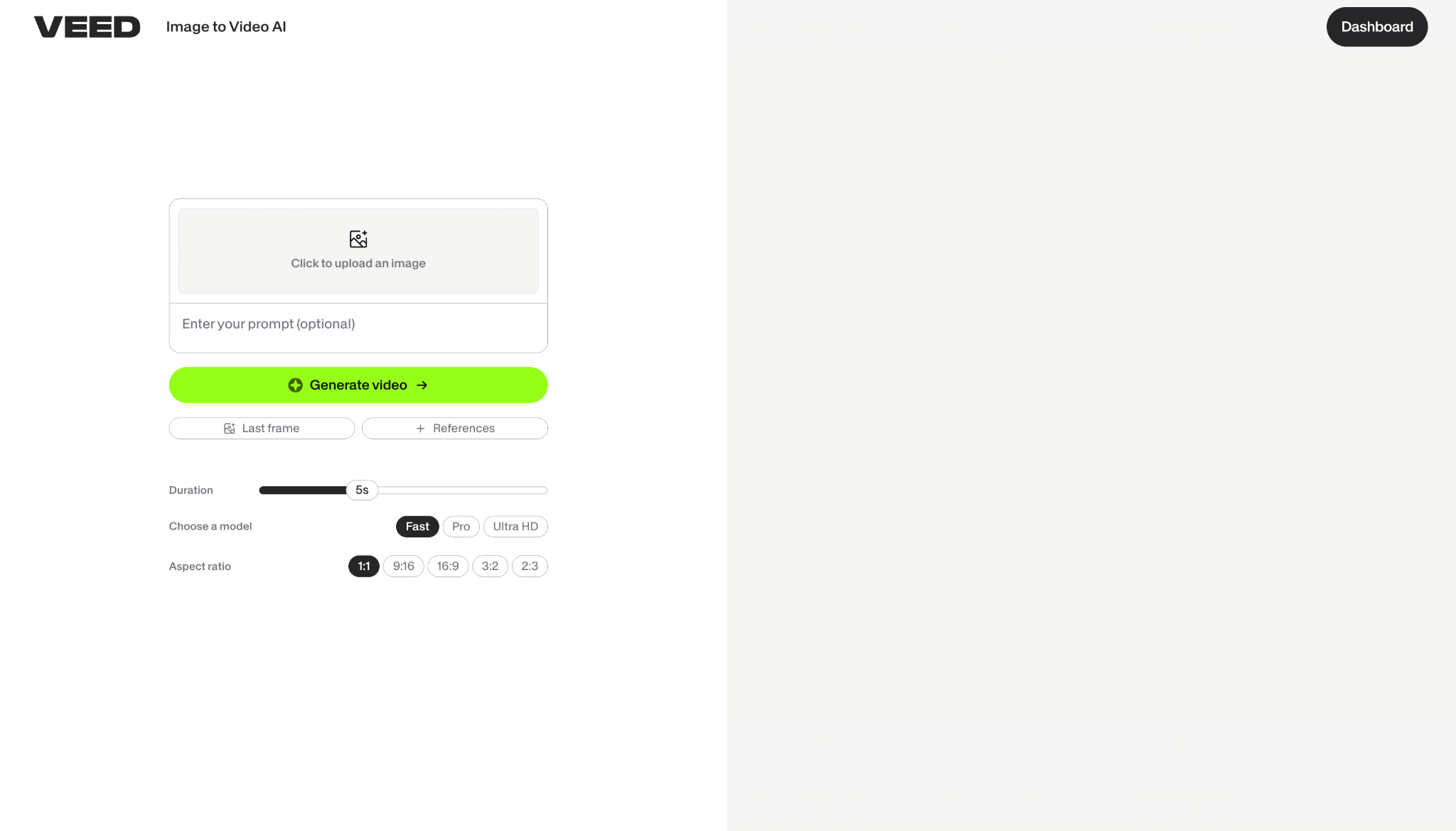
An AI image-to-video generator is a tool that takes a single still image and produces a short video clip from it, adding camera movement, subject motion, and lighting changes the original photo never had. You upload the picture, type a prompt describing the motion you want, and the model generates a few seconds of footage with your image as the first frame. VEED's AI image-to-video generator works this way inside an AI video creation platform built for social, so the generated scene lands in a project where you can caption it and brand it in the same workflow.
Key capabilities:
- Camera movement: dolly in, orbit, pan, drone flythrough, slow push. Motion the image never had.
- Subject motion: steam rising, fabric moving, hair shifting, liquid pouring.
- Lighting and atmosphere: time-of-day shifts, light bloom, haze, reflections.
- Scene extension: background depth beyond the edges of the original frame.
- Duration control: short clips sized for a hook, a transition, or a product beat.
The model reads your image, estimates depth and material, then generates frames forward from that starting point. That is why the input image does most of the work. A clean, well-lit, and uncluttered still gives the model a clear read and a clean result. A busy, low-resolution screenshot gives it noise to interpolate, and interpolated noise is what people mean when they say AI video looks fake.
The prompt matters more than people expect, for the same reason. "Make it cinematic" means nothing to a model. "Slow dolly in, shallow depth of field, warm late-afternoon light, subject stays centered" gives it something to execute. Most people learn that on their fourth failed generation.
Text-to-video vs. image-to-video vs. video-to-video: Which one do you need?
Use image-to-video when the output must contain your real product, face, or space. Use text-to-video for concepts and abstract b-roll. Use video-to-video to restyle footage you already shot. All three get called "AI video," and they do different jobs, so picking the wrong one is the fastest way to waste credits.
Note: image-to-video gives you the most control because you decide what's in frame before the model touches it. If the shot is your actual product, the output is your actual product.
Why image-to-video wins for brand work
Image-to-video gives you the most brand control because your approved asset is the first frame. With text-to-video, you describe a sneaker, the model generates a sneaker, and it isn't your sneaker. If you're the one who has to post it, that's a dead end.
Image-to-video starts from something you already signed off on: your packaging, your storefront, your headshot, or your screenshot. The model's job narrows from "invent a scene" to "move this scene," which is a much smaller ask, and the results are far more predictable. In practice, that's usually what decides whether you post the clip or delete it.
On VEED, you can run the same image through several image-to-video models in one place and keep the version that holds your product's shape. If you start from a template instead, the model is chosen for you.
Why motion earns the stop on social
Short-form video is the format marketers most often rank as their highest-ROI content, according to HubSpot's State of Marketing research, and a peer-reviewed comparison of static and dynamic Instagram posts found that dynamic posts drew more likes, comments, shares, and saves relative to reach. The honest caveat: HubSpot's data also shows carousels draw the highest engagement on Instagram, so motion is not a magic switch. What a moving clip does reliably is get the first second of attention. A slow dolly-in gives a flat product shot somewhere to go, and from there, the message has to keep people watching.
The blank page is the real barrier, not the model
The thing that stops most people from getting usable AI video is the prompt. In VEED's user research, knowing what to type comes up more often than credits, render time, or model choice. You end up writing prompts like you're negotiating with a search engine, regenerating five times, then giving up and posting the static image.
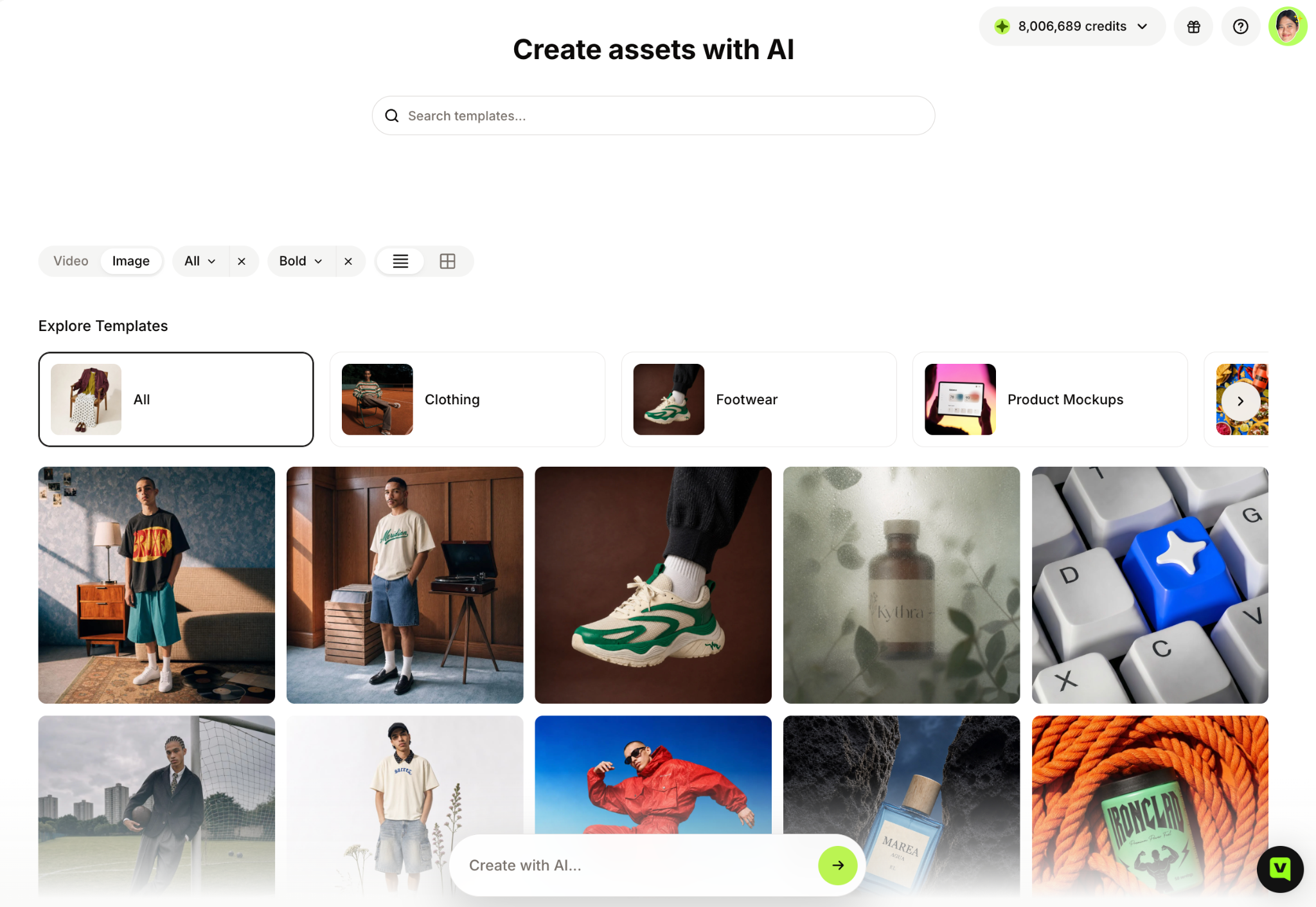
That's why VEED built a Template Gallery into its AI video generator. It's a starting set of templates organized by what you want the clip to do: camera movement, viral hook style, visual direction. Pick one, and it sets the mode, the model, the prompt, and the reference images in a single step. Swap in your own image or adjust the prompt detail, generate, and the result lands in your project ready to edit. You don't need a separate tool, and nothing has to be downloaded and re-imported.
Pricing: current plans and credit allowances are listed at veed.io/pricing.
How to turn a single image into a social clip in six steps
Turning one image into a social clip takes six steps: pick a clean source image, start from a template, describe the motion in specific language, generate and reprompt one change at a time, add your branding, then export for the channel. The whole thing takes minutes.
1. Pick the right source image
For product and ecommerce
🥇 Best choice: A clean studio shot on a plain background, high resolution, with the product fully in frame with breathing room at the edges. Space at the edges gives the camera somewhere to move.
🥈 Runner-up: A lifestyle shot with a clear subject and an uncluttered background. More character, slightly less predictable motion.
For founder-led and personal brand content
🥇 Best choice: A sharp headshot with even lighting and the subject facing the camera. Good for a hook frame or an opener. It won't replace you actually being on camera.
🥈 Runner-up: A workspace or environment shot that sets the scene while a voiceover carries the message.
2. Start from a template, not from zero
Open the Template Gallery and browse by what you want the clip to do: opening hook, product reveal, slow atmospheric beat, or something more cinematic and surreal if the brief allows it. Picking a template sets the mode, model, prompt, and reference image for you. You swap in your own image and change the parts that are yours.
3. Describe motion in plain, specific language
Name the camera move, the speed, the light, and what must stay unchanged. A prompt that works follows one shape:
[camera move] + [speed] + [light] + [what stays locked]
"Slow orbit left around the bottle, soft rim light, label stays legible and in focus" beats "cool product video" every time.
4. Generate, then reprompt one variable
The first generation is a draft. Look at it, find the one thing that's wrong, change only that in the prompt, and run it again. Changing five things at once tells you nothing about what fixed it.
5. Make it yours before it goes out
The generated clip is raw material. Add your subtitles with VEED's auto subtitle generator, then your fonts, your colors, your logo, and your voice. This is the half of the workflow most generation tools skip, and it's the half that decides whether the video looks like your brand or like everyone else's.
6. Export for the channel you're posting to
Use the aspect ratio and length the platform wants, and burn the captions in so the clip works with the sound off. Then post it.
Best practices for AI image-to-video clips that don't look generic
.png)
The output stops looking like stock footage when the input is clean, the prompt is specific, and your branding is consistent from one clip to the next.
Input quality
- Go high resolution: the model upscales whatever ambiguity you hand it. Start sharp.
- Leave edge space: a subject cropped tight gives the camera nowhere to travel.
- Keep backgrounds simple: busy backgrounds are where artifacts show up first.
- Use your real assets: your product, your space, your team. That's where the authentic feel comes from.
- Avoid text in the source image: generated frames distort small type fast.
Prompting
- Lead with the camera move: it's the single biggest lever on how the clip feels.
- Name what must not change: logos, labels, faces, and colors. Lock them in words.
- Be specific about light: "warm late-afternoon side light" lands. "Good lighting" doesn't.
- Keep clips short: longer generations drift. Short beats hold together and cut better.
- Change one variable per regeneration: that's how you learn what the model responds to.
Brand finishing
- Apply your brand kit every time: consistent fonts, colors, and logo placement across every clip are what make a feed look like a feed and not a pile of experiments.
- Caption everything: most social videos are watched on mute. Accurate subtitles are a performance feature, not an accessibility afterthought.
- Match polish to purpose: a scrappy behind-the-scenes clip and a paid ad have different bars, so put the polish where it matters.
- Build a series, not a one-off: reuse the same template and treatment across a content calendar so the fifth post reinforces the first.
- Keep a hook in the first frame: motion gets people to stop scrolling, and the message has to hold them after that.
What to remember
- Image-to-video gives you control: starting from your own asset is the most reliable way to get output that looks like your brand.
- Be specific in the prompt: name the camera move, the light, and what has to stay locked.
- Templates beat the blank page: most people get stuck on what to type, and a template gives them a working structure to start from.
- Motion gets the first second: a still photo with movement stops the scroll, and the message does the rest.
- Finishing is half the job: subtitles, branding, and voice are what separate a generated clip from a posted one.
Pick a product photo you already have and turn it into a clip with VEED's AI image-to-video generator.
FAQ
An AI image-to-video generator is a tool that takes a still image and generates a short video clip from it, adding camera movement, subject motion, and lighting. You supply the picture and a prompt describing the motion you want. The output is a few seconds of footage with your image as the first frame, ready for social, an ad, or a scene inside a longer video.
For product and brand work, image-to-video is the more reliable choice. Text-to-video invents everything in frame, which means it invents your product too, and the result rarely matches what you sell. Image-to-video starts from an asset you already own and approved, so the output is recognizably yours. Text-to-video still has a place for concept exploration and abstract b-roll.
A good source image is high resolution, has a clear subject, has even lighting, has an uncluttered background, and has some space around the edges so the camera has room to move. Avoid images with small text, because generated frames tend to distort type. A clean studio product shot on a plain background is the most predictable starting point for a social clip.
Keep AI-generated clips short, usually a few seconds. Short generations hold their shape, while longer ones tend to drift away from the source image and the prompt. Short clips are also easier to cut into a sequence with your other footage, which is how most social videos get built: a generated hook, a product beat, then your own captions and voice.
Yes. Prompt templates exist for exactly this. You pick a template built around the look you want, such as a product reveal or a slow orbit, swap in your image and your details, and generate. You learn the prompt structure by using it rather than studying it first. VEED's Template Gallery organizes templates by camera movement, hook style, and visual direction.
The generated clip is raw material, and branding is what turns it into something you'd post. Work through it in order:
- Start from your own image rather than a generated subject
- Keep motion subtle and purposeful instead of maximal
- Add accurate subtitles in your brand font
- Apply your colors and logo placement consistently across every clip
- Use the same template and treatment across a series so the feed reads as one brand