AI Asset Templates Are Live in VEED: Pick a Template and Generate

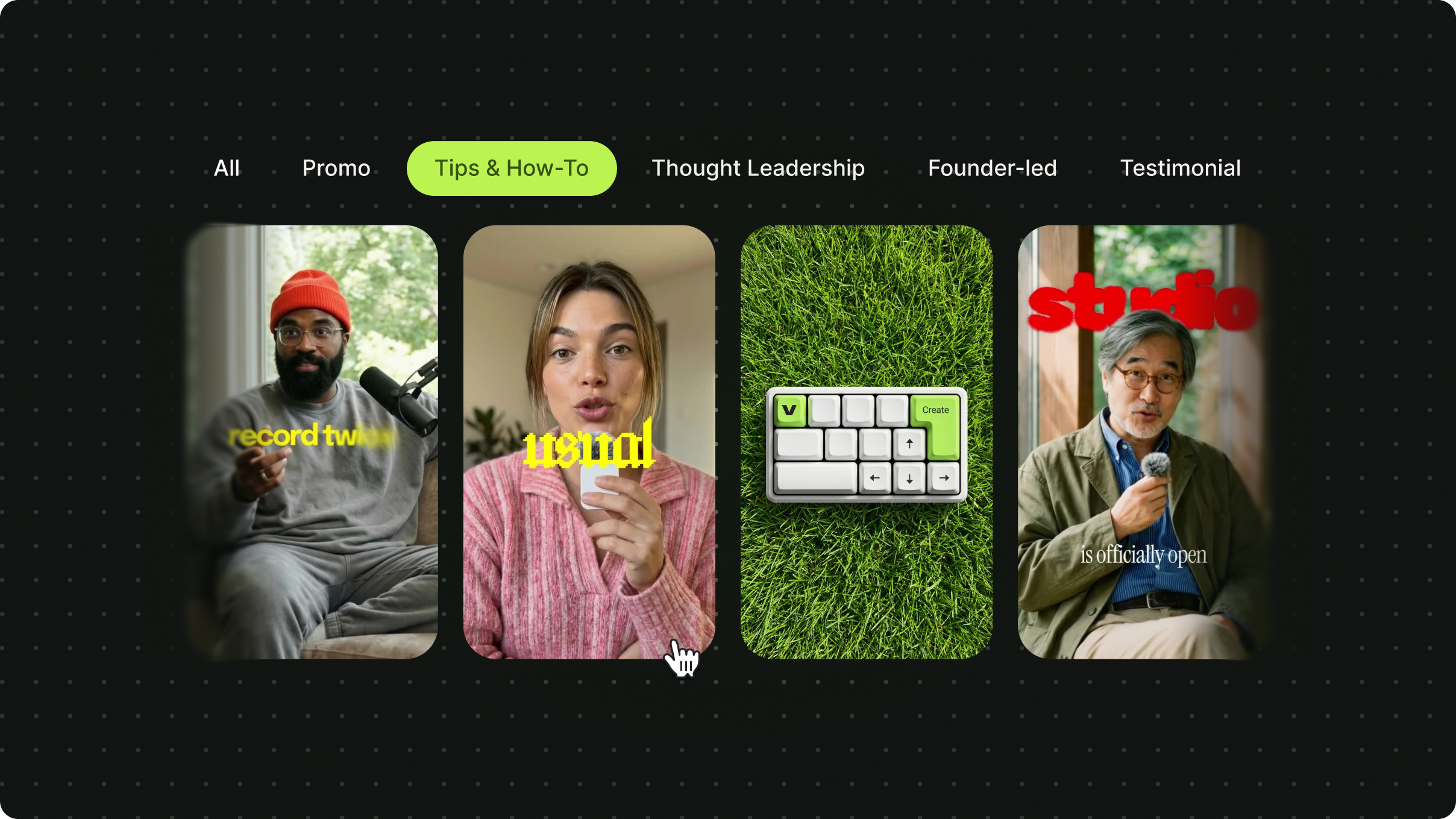
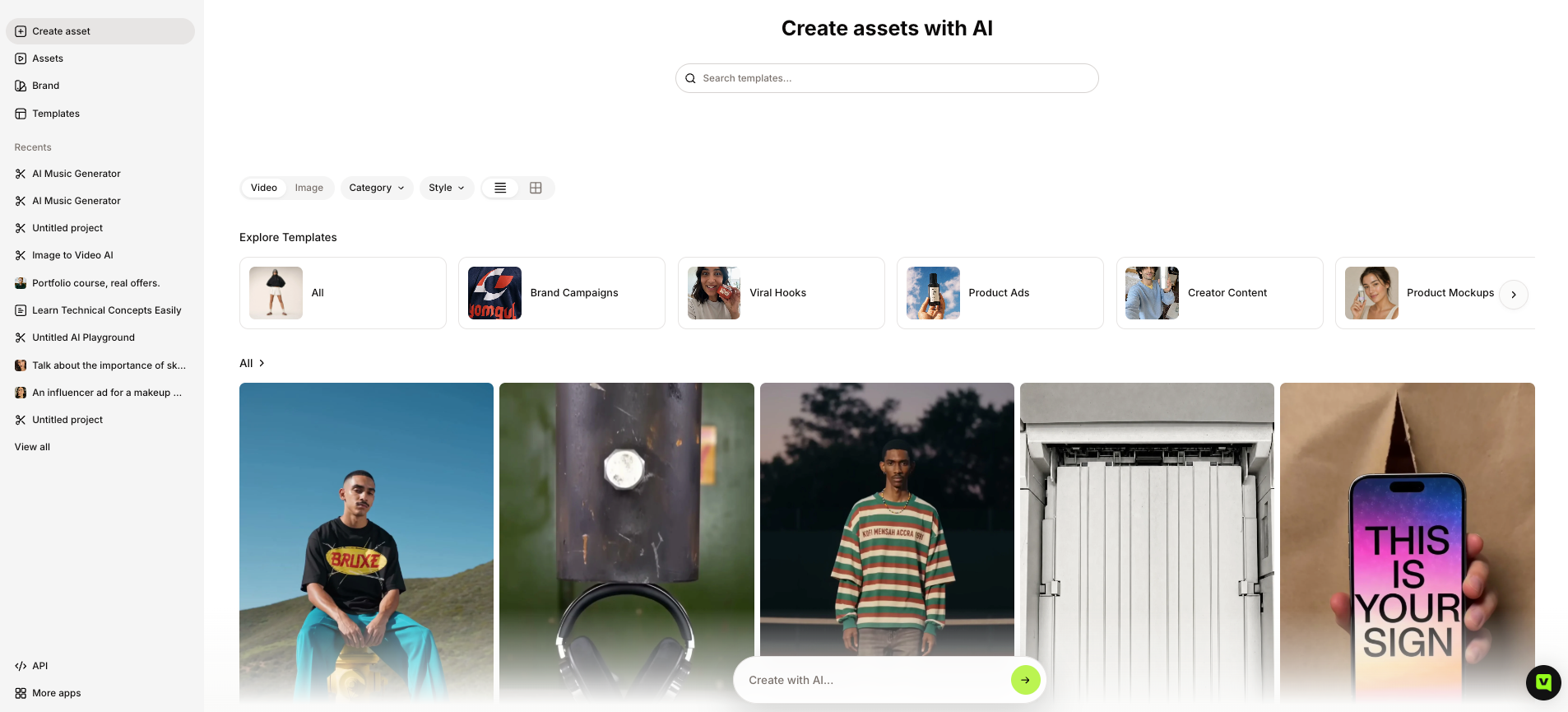
AI Asset Templates are now available in VEED. They are a gallery of ready-made video and image templates, each with a visual preview and a prompt already written, that you browse by category and style from the Create asset workspace. Pick one, click Recreate this, add your product or subject, and generate the asset for the video you are already building in VEED.
You know the shot you want. A slow push in on the product, a close-up that looks properly lit, a background that does not look like stock. What you do not have is the right words for it, and the blank prompt box does not help. You describe it, generate, look at the result, and try again, and after three attempts you still cannot tell what went wrong.
AI Asset Templates change where you start. The prompt is already written by someone who knows what the model responds to, and it is specific down to the camera angle and the lighting. You choose the template, add your subject, and generate.
Key takeaways:
- AI Asset Templates live under Create asset in the VEED sidebar and are available now.
- Templates are split into video and image, with filters for category (Brand Campaigns, Viral Hooks, Product Ads, Creator Content, Product Mockups) and style.
- Every template has a visual preview and a pre-written prompt that you can keep as it is or edit.
- Click Recreate this, pick your model, and the credit cost shows on the Generate button before you run it.
- Templates run on VEED credits, and free plans can try them within free credit limits.
What are AI Asset Templates?
.png)
AI Asset Templates are ready-made video and image templates inside VEED. Each one comes with a visual preview, so you can see what it produces before you spend credits, and a prompt that is already written for the model behind it. You browse by category or style, click Recreate this, and the prompt loads for you to keep or edit. Then you pick a model and generate. You never have to learn how a model wants to be prompted to get an asset you would actually use.
Key features at launch:
- Video and image templates: Switch between Video and Image at the top of the gallery, depending on what the post needs.
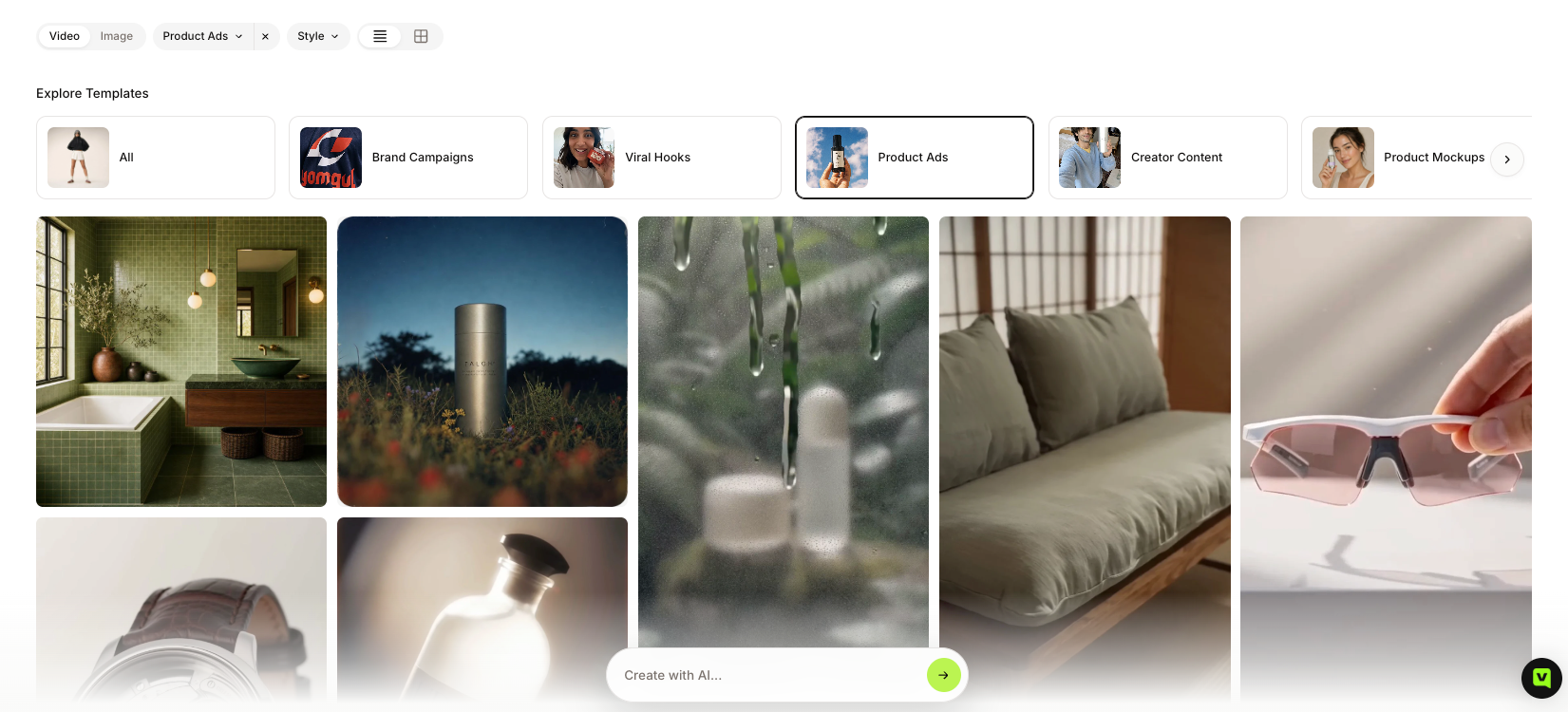
- Category filters: Browse by Brand Campaigns, Viral Hooks, Product Ads, Creator Content, or Product Mockups, so you start from the kind of content you are making rather than from a description of it.
- Style filters: Narrow the gallery by look. Minimal, Modern, Bold, Professional, Simple, Cute, Dark, Elegant, Fun, Illustration, Ornate, and Classic are all there.
- Template search: Type what you are after in the search bar and jump to matching templates.
- Visual previews: Every card shows the output, so you choose by what it looks like.
- Recreate: One click loads the template's full prompt into the prompt box, ready to use as it is or to edit.
- Model choice: Pick which AI model generates the asset, along with aspect ratio and resolution, from the same prompt box.
- Credit cost up front: The Generate button shows how many credits the generation will use before you click it.
- Your own image as the subject: Upload a product shot or a screenshot, and the template builds the scene around it.
Prompting is the biggest thing standing between most marketers and usable AI output, and it is a skill nobody signed up to learn. There is a whole market of paid prompt packs that exists for this reason. Templates put that work inside VEED, where you are already making the video.
Because the asset lands inside the workspace you are already building in, the time you save on generation does not get spent again on cleanup. That is usually where the hours go.
Pricing: AI Asset Templates run on VEED credits. Plan and credit details are on the pricing page.
How do you generate an asset with AI Asset Templates?
Generating an asset with AI Asset Templates takes a few clicks: open Create asset, pick a template, click Recreate this, check the prompt, and generate. There is no blank box at any point.
- Log in to VEED and click Create asset in the left sidebar. This opens the Create assets with AI workspace.
- Find your template. Search for something specific, or switch between Video and Image and filter by Category (Brand Campaigns, Viral Hooks, Product Ads, Creator Content, Product Mockups) or Style (Minimal, Bold, Professional, Elegant, and more). Every card shows a preview, so you choose by eye.
- Click Recreate this on the template you want.
- Read the prompt that loads. It is already written, down to the scene, the angle, and the lighting. Leave it as it is, or add the details you want in plain language, such as your product name or a color.
- Upload your own image if the template uses one, such as a product photo or a screenshot for a device mockup. [confirm: which templates accept a reference image]
- Pick your model, aspect ratio, and resolution, then click Generate. The credit cost is on the button, so you know what it will use before you run it.
That is the whole flow. The hard part, which is writing a prompt that actually gets the shot, is done before you arrive. If you want to write one yourself anyway, the AI video generator in VEED takes a text prompt directly, and this guide to writing AI video prompts covers how to structure one. For stills, the AI image generator works the same way.
Who are AI Asset Templates for?
AI Asset Templates are for people who need social visuals faster than they can produce them. If you recognize yourself in one of these five, this was built for you.
The ecommerce seller with one product photo
You run a small online shop, often on your own, selling a physical product through Shopify, Etsy, or Amazon. You did one product shoot when you launched, on a white background, and that set of photos has been doing all the work since. You post to Instagram and TikTok when you can, mostly repurposing the same listing images, and you have noticed that your ads look like catalog pages next to the brands you compete with. You have tried a couple of AI product photo apps. Some handled backgrounds well enough, but you still had to describe the scene yourself, and the results were hit and miss.
AI Asset Templates give you lifestyle scenes and short product clips that start from the photo you already have. Product Mockups and Product Ads are the categories built for you, with the scene, lighting, and angle already decided, so your one white-background shot becomes a set of ads that look styled.
The solo marketer at a growing company
You are the only marketer at a company with fewer than a hundred people, and social video is one of about nine things you own. The remit keeps growing and the headcount does not. You have a brand to protect and a feed to fill across LinkedIn, Instagram, and whatever the founder is posting on this month. You have used AI video tools and found them good enough for a draft and not good enough to publish. You also know that if a generic clip goes out, it is your name on the approval.
Templates give you output you can see before you commit credits to it, which removes the guessing that burned you before. Brand Campaigns and Product Ads give you assets that look intentional, and because everything lands in VEED, the subtitles and brand colors go on in the same place. You get a repeatable way to turn a product image into a post without a shoot.
The creator who posts for a living
You post daily, across at least two platforms, and brand partnerships are a real part of your income. Every post needs a hook, and the hook needs to feel new, because your audience notices repeats. Sponsors want a clip that looks finished and arrives on time. Ideas come easily. The footage to carry them is the bottleneck, since shooting something fresh for every post eats the day, and when a deadline is close, that is the step that slips. If you have paid for a hook prompt pack before, you already know how much of the work is finding the words.
Viral Hooks and Creator Content give you a library of openers and scene clips you can generate in minutes, in the vertical format the feed needs, without a camera day. The previews let you pick by feel, which is how you already work.
The SaaS marketer with a screenshot and no mockup
You work on a small product marketing team at a B2B software company. Launches come every few weeks, and each one needs social assets. The only visual the product gives you is a screenshot, and flat screenshots do not perform on a feed. A proper device mockup used to mean waiting on a designer or spending an afternoon with a stock mockup file, so launches often went out as text-only posts.
A device mockup template from Product Mockups turns that screenshot into a laptop or phone in a lit, framed scene, and you can change a detail in plain language if something is off. Your launch post is ready while the release notes are still being written.
The founder doing everything
You run a business of one to three people and handle the marketing yourself between everything else. You know video drives visibility and sales, and you are not posting enough of it. You have no video background and no budget for an agency. The last AI tool you tried handed you something you would not have put your name on, so video keeps sliding to Friday and then to next week.
Templates let you start from a preview that already looks like something you would post, with a prompt you can read and adjust in plain words. Creator Content and Product Mockups cover most of what you need, and the assets stay in VEED, so next week's post starts from this week's.
How are AI Asset Templates different from writing a prompt from scratch?
Open any template and read the prompt that loads. A device mockup template, for example, specifies the laptop color, the desk material, the camera angle, the wall color behind it, and how the daylight falls across the scene. That level of detail is what a model needs to produce something usable, and it is the part most people never write on their own. That is the difference, and it shows up in a few places.
- You start from a preview. You see what the template produces before you spend a credit, which a blank prompt box cannot show you.
- The prompt is already specific. Scene, angle, lighting, and framing are written in, so you are adding your subject to a prompt that already works.
- You can still change it. The prompt is editable in plain language. Add your product name, swap a color, or leave it as it is.
- Categories and styles do the sorting. Rather than describing a creator-style ad in words, you filter by Creator Content and a style like Bold or Minimal and pick from what comes up.
- You pick the model in the same box. Model, aspect ratio, and resolution sit next to the prompt, so there is no separate settings screen.
- You know the cost before you generate. The credit cost is on the Generate button, so trial and error does not quietly eat your balance.
- It stays inside VEED. The asset lands in the workspace where you add subtitles, brand colors, and voice, with no download and re-upload.
Writing from scratch still makes sense when you need a shot the gallery does not cover, or when you already know which phrasing a specific model responds to. For most social video briefs, you know the feel you want before you know the words for it, and that is where a template saves the most time.
Either way, the asset is only the first half of the job. Add your subtitles, brand colors, and voice, then post it. VEED's guide on how to make AI videos walks through the full flow.
Your next post does not need a shoot
Most of the time between an idea and a posted video goes on things that have nothing to do with the idea, like finding the words a model wants and cleaning up what came back. AI Asset Templates take that part off your plate. The prompt is already written, and you can see what it produces before you spend a credit. So pick the one that looks like the shot you have been putting off and generate your first asset today.
FAQ
AI Asset Templates are ready-made video and image templates in VEED's Create asset workspace. Each one has a visual preview and a pre-written prompt, and the gallery is filtered by category (Brand Campaigns, Viral Hooks, Product Ads, Creator Content, Product Mockups) and style. You click Recreate this, keep or edit the prompt, pick a model, and generate.
No. When you click Recreate this, the template's prompt loads for you, with the scene, angle, and lighting already written. You can generate it as it is or add details in plain language, such as your product name. The model-specific phrasing, which is the part that usually goes wrong when you prompt from a blank box, is handled.
Yes. The prompt is fully editable once it loads. Read it, change any detail you want, or add something it does not mention, then pick your model, aspect ratio, and resolution and click Generate. The credit cost shows on the button before you commit.
Templates that take a reference image, such as device mockups, let you upload your own image and build the scene around it. Upload a product photo or a screenshot, click Recreate this, and the prompt treats your image as the subject.
AI Asset Templates generate video and image assets, with a Video and Image toggle at the top of the gallery.
Yes. Generated assets stay in your VEED workspace, so you can add subtitles, apply your brand colors, add a voice, and shape the clip until it looks like your brand made it. If the generation is not right, change the prompt or the template and run it again.