PixVerse Prompting Guide: Get Better Results in 5 Steps

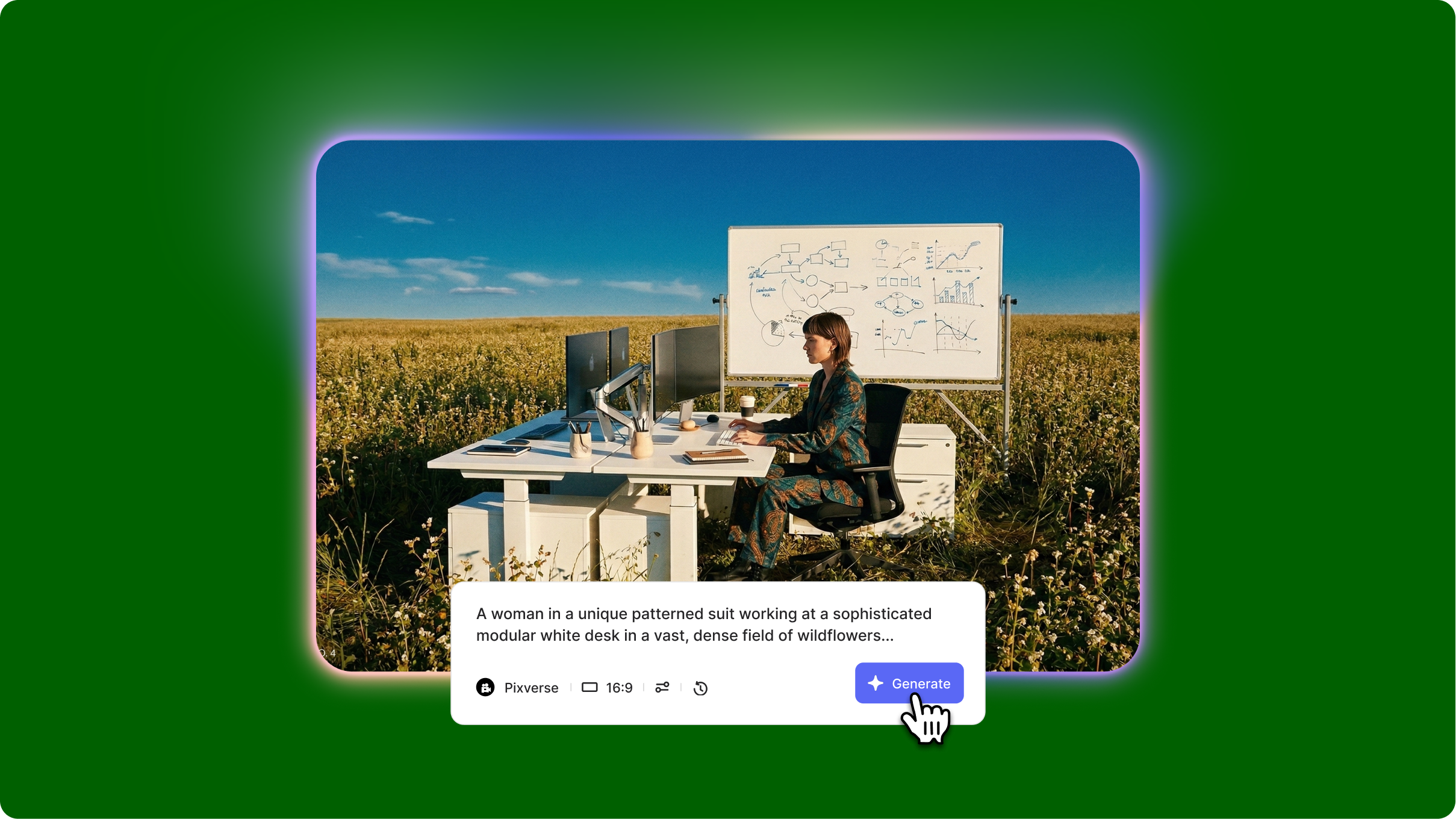
- Pixverse AI is a free video generator that creates 4-second clips with strong motion control, character consistency, and support for multiple languages in prompts
- The Pixverse prompt format uses a 5-part structure: subject description, action/motion, environment, camera angle, and style specifications for optimal results
- Pixverse negative prompt eliminates unwanted artifacts like distortion, blurriness, and morphing, while Pixverse transition prompts enable seamless scene changes
Pixverse AI prompt guidelines are essential because this free platform interprets detailed, structured prompts significantly better than short descriptions. Without proper formatting, you'll get inconsistent character appearances, awkward motion, or generic visuals. This Pixverse AI prompt guide shows you exactly how to structure prompts for maximum quality, use negative prompts to eliminate artifacts, and create seamless transitions between clips.
What you'll learn: The 5-element Pixverse prompt format, proven Pixverse prompt examples for different scenarios, negative prompt strategies, and Pixverse AI transition prompt techniques.
Understanding Pixverse's strengths
What Pixverse AI excels at:

Character consistency: Maintains facial features, clothing, and hairstyles more consistently across frames than many paid alternatives. A character's appearance remains identical from the first to the last frame without morphing.
Natural motion: Produces smooth, realistic movements for walking, gestures, and facial expressions without the robotic stiffness common in AI video. Hair and clothing move authentically with character motion.
Multi-language support: Pixverse AI prompt language support includes English, Chinese, Japanese, and more, allowing creators worldwide to write prompts in their native language.
What to avoid:
- Complex hand gestures or finger movements often produce distorted or extra digits
- Rapid scene changes within a single 4-second clip create jarring visual inconsistencies
Quick tip: Pixverse works best with prompts that focus on one primary action rather than multiple competing movements. Keep it simple for cleaner results.
Core Pixverse prompting framework
The 5-part prompt structure
Pixverse prompt format template
[Subject description], [Action/Motion], [Environment], [Camera angle], [Style]
Pixverse AI prompt example: "Professional businessman in navy suit and red tie, mid-40s with confident expression, walking through modern office lobby while checking tablet in hands, sleek contemporary interior with glass walls and marble floors, medium tracking shot following from side at chest height, corporate commercial aesthetic with cool blue tones and sharp focus."
Pixverse prompt examples for different scenarios:
Nature scene: "Majestic eagle with brown and white feathers, soaring gracefully through mountain valley with wings fully extended, dramatic alpine landscape with snow-capped peaks and pine forests below, wide shot from elevated position showing full wingspan, documentary wildlife style with natural colors and crisp detail"
Urban lifestyle: "Teenage skater in casual streetwear and backwards cap, performing kickflip on skateboard in smooth fluid motion, empty urban parking lot with graffiti wall background, low angle shot from ground level emphasizing height of trick, energetic street photography style with vibrant colors."
Advanced Pixverse prompting techniques
Pixverse negative prompt strategy
Eliminates common AI artifacts and unwanted visual elements.
When to use: Every generation to ensure clean, professional results without distortion.
Example Pixverse negative prompt: "Negative: blurry, distorted faces, extra fingers, morphing, warping, low quality, pixelated, grainy, inconsistent lighting, duplicate limbs, floating objects, unnatural movements"
Pixverse AI transition prompt
Creates seamless connections between separate clips for extended sequences.
When to use: Building longer narratives by connecting multiple 4-second clips smoothly.
Pixverse transition prompt example:
- Clip 1: "Scene ends with character opening door and stepping through threshold."
- Clip 2: "Scene begins with the same character emerging from the doorway into the new room (matching the exit position from the previous clip)."
Motion intensity control
Adjusts the speed and energy of movements for different moods.
When to use: Matching motion pacing to your narrative tone.
Example Pixverse prompt tips:
- Slow/calm: "gentle, slow, gradual, peaceful movements."
- Medium/natural: "steady, natural, moderate pacing"
- Fast/energetic: "quick, dynamic, rapid, energetic actions
Common mistakes and fixes
Getting started with Pixverse AI
The Pixverse AI prompt guidelines emphasize clarity and structure. Use the 5-part framework with detailed descriptions, always include a negative prompt, and leverage transition prompts for extended sequences. Start with simple single-action prompts to understand how Pixverse interprets your style before attempting complex scenes.
Try Pixverse alongside other AI video generators in VEED's AI Playground, where you can compare outputs and integrate results directly into your video editing workflow.