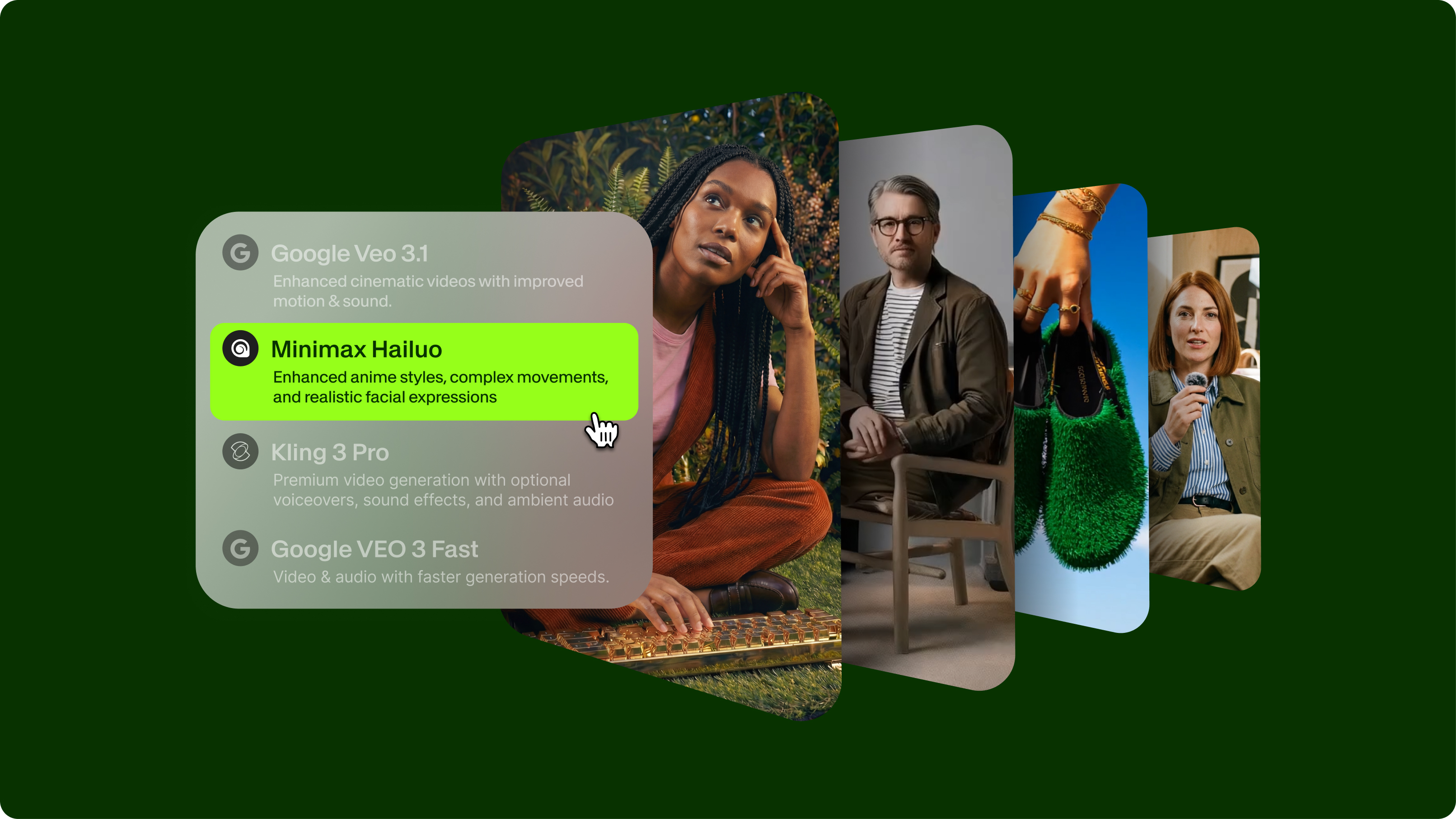
Kling AI 3.0 User Guide: How to Use Text-to-Video & Image-to-Video
Summary / Key Takeaways:
- Kling AI 3.0 is available on VEED's AI Playground with both standard and professional modes for text-to-video and image-to-video generation
- Videos generate from 3 to 15 seconds at 1080p resolution, with professional mode offering 4K output capabilities
- The platform excels at realistic motion, smooth camera movements, and maintaining character consistency across shots
- Multi-shot storyboards with motion control features let you direct entire scenes with automatic camera transitions and shot composition
- VEED's integration lets you generate AI videos and edit them in the same workspace without switching platforms
Kling AI 3.0 is an AI video generator that creates videos from text descriptions or animates still images. The latest 3.0 version brings major improvements, including multi-shot storyboarding, extended duration up to 15 seconds, 4K output capabilities, and character consistency features that maintain visual identity across multiple shots.
You can access Kling AI 3.0 directly through VEED's AI Playground, which offers a streamlined interface for video generation and integrates with VEED's complete video editing suite. This integration means you can generate AI video clips and immediately add text overlays, music, transitions, and branding elements without switching between platforms—particularly valuable for marketers creating finished content on tight deadlines.
This Kling AI beginners' guide covers everything you need to start creating videos with Kling AI 3.0, from basic setup to advanced techniques such as multi-shot storyboarding for complete video sequences and cinematic prompting for professional results.

What is Kling AI 3.0?
Overview of Kling AI's capabilities
Kling AI 3.0 uses the Omni Model architecture to generate videos from text prompts or animate existing images. The platform handles complex scenarios, including realistic physics, smooth camera movements, and natural motion that earlier AI video generators struggled with.
Key capabilities:
- Text-to-video generation creates complete clips from written descriptions
- Image-to-video animation brings still images to life with motion
- Multi-shot storyboarding with up to 6 camera cuts in a single generation
- Multiple aspect ratios (16:9, 9:16, 1:1) for different platforms
- Videos from 3 to 15 seconds at 1080p or 4K resolution with 30fps
- Advanced motion control features and camera controls for cinematic shot composition
- Character consistency across multiple shots and scenes
The model understands natural-language prompts and can generate everything from single-product shots to multi-scene narratives with automatic camera transitions, making it practical for content creators, marketers, and video producers who need cinematic sequences without traditional editing.
What's new in Kling 3.0
Release Date: February 2025
Major improvements over previous versions:
- Multi-shot storyboarding: Create up to 6 distinct camera cuts within a single generation with automatic transitions and shot composition
- Extended duration: Generate videos up to 15 seconds (up from 5-10 seconds in previous versions)
- 4K output: Native 4K resolution support in professional mode without upscaling
- Enhanced motion quality: More realistic and fluid movement with improved physics simulation
- Character consistency: Maintain the same character appearance, style, and identity across multiple shots using the Elements reference system
- Better prompt understanding: The model follows detailed instructions more accurately
- Improved text rendering: Can generate and preserve readable text elements like logos, signage, and branded content
- Advanced camera controls: Smoother execution of complex movements, including shot-reverse-shot dialogue patterns
- Faster generation: Reduced processing times compared to earlier versions
Kling 3.0 also handles lighting changes, environmental effects, and object interactions more naturally, producing videos that look polished and intentional rather than obviously AI-generated.
Getting started with Kling AI 3.0 on VEED
Accessing Kling 3.0 through VEED
Access Kling AI 3.0 through VEED's Kling 3.0 page or directly in the AI Playground. If you already have a VEED account, you can start generating immediately. New users can sign up for free to test the platform with trial credits.
VEED offers both standard and professional modes of Kling 3.0 alongside its full video editing suite, so you can generate AI videos and edit them in the same workspace—adding text overlays, subtitles, audio, transitions, and other elements without downloading files and switching between platforms.
Understanding the interface
The VEED AI Playground organizes Kling 3.0 around a clean prompt input field with key settings:
Generation Modes:
- Text-to-video: Create videos from written descriptions alone
- Image-to-video: Animate a still image you upload
- Smart Storyboard: AI automatically breaks your description into multiple shots
- Custom Storyboard: Manually define each shot with specific prompts and durations
Video Settings:
- Duration: 3 to 15 seconds (flexible control based on your needs)
- Aspect Ratio: 16:9 (landscape), 9:16 (vertical), or 1:1 (square)
- Quality: Standard mode (1080p) or Professional mode (up to 4K)
Additional Options:
- Camera movement controls
- Negative prompts to avoid unwanted elements
- Style and reference settings
- Character/element reference uploads for consistency
Videos are output in MP4 format at your selected resolution with 30 frames per second. Once generated, your video appears in your VEED project, where you can immediately begin editing.
Why use Kling 3.0 on VEED
Integrated editing workflow: Generate videos and immediately edit them without downloading and re-uploading to separate tools. Your AI-generated clips appear directly in VEED's timeline for seamless editing.
Unified credit system: Use VEED credits across all AI tools and editing features rather than managing separate platform subscriptions and credit systems.
Post-production tools included: Add text overlays, auto-subtitles, music, sound effects, branding elements, and transitions in the same workspace where you generated your video.
Project management: Organize all your video assets and AI-generated content in VEED's project system, with cloud storage and easy access across devices.
Team collaboration: Share projects and AI-generated clips with team members for review, feedback, and collaborative editing.
Access to motion control features: Utilize Kling AI's advanced motion control capabilities directly within VEED's interface for precise camera movements and cinematic effects.
Multi-shot storyboarding
What is multi-shot generation?
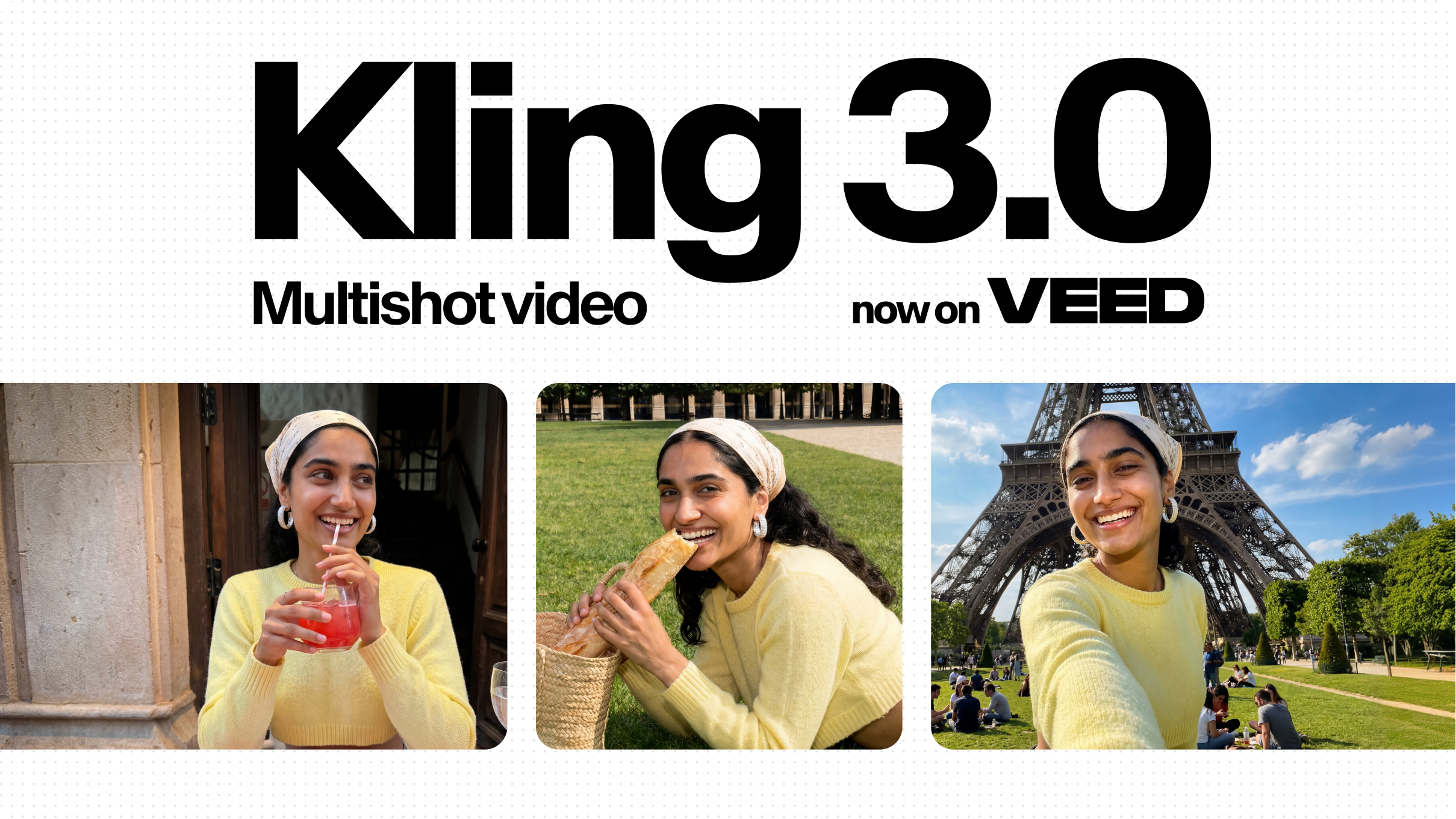
Kling 3.0 offers two approaches to multi-shot creation. Smart Storyboard mode uses AI to automatically break your narrative description into multiple shots with optimal camera angles and transitions. Custom Storyboard mode lets you manually define each shot's duration, camera movement, and composition for precise control over the sequence.
For example, a smart storyboard prompt like "Product launch video: establishing shot of modern office, close-up of smartphone on desk, over-shoulder shot of person using device, dramatic logo reveal" automatically generates appropriate shot coverage, while custom mode allows you to specify exact timing and parameters for each cut.
Smart storyboard vs custom storyboard
Smart Storyboard (AI-directed):
Write a single comprehensive prompt describing your complete scene or narrative. Kling 3.0 analyzes your description and automatically breaks it into multiple shots, determining optimal camera angles, timing, and transitions.
Example prompt: "A product launch video: Start with an establishing shot of a modern office, then cut to a close-up of the new smartphone on a desk, followed by an over-the-shoulder shot of someone using the device, and finish with a dramatic reveal of the product logo."
The AI interprets this narrative structure and generates appropriate shot coverage, with smooth transitions between scenes.
Custom Storyboard (Manual control):
Define each shot individually with specific parameters:
- Duration for each shot (e.g., Shot 1: 3 seconds, Shot 2: 4 seconds, Shot 3: 2 seconds)
- Individual prompts describing exactly what happens in each shot
- Camera movements and angles per shot
- Subject focus and composition for each frame
This mode gives you precise control over every aspect of the sequence, making it ideal for ads, music videos, and projects requiring specific shot lists.
How to use multi-shot storyboarding
Planning your shots:
Before creating, outline your video structure:
- What story are you telling across multiple shots?
- How many distinct camera angles or perspectives do you need?
- What's the logical flow between shots?
- Which shots need specific durations for timing or pacing?
Writing effective multi-shot prompts:
For smart storyboard mode, structure your prompt to indicate scene changes:
- Use phrases like "cut to," "then," "followed by," "transition to."
- Specify camera angles for each shot (wide shot, close-up, medium shot)
- Describe the subject and action for each distinct scene
- Include dialogue or voiceover cues if relevant
Example structured prompt:
"Start with a wide shot of a cafe interior, morning light streaming through windows. Cut to a medium shot of a woman sitting at a table with a laptop, typing intently. Push in to a close-up of her face showing concentration, then cut to an over-the-shoulder angle showing her screen with a completed project. Final shot pulls back to show her smiling with satisfaction."
Multi-shot best practices:
Keep shot count reasonable: While you can create up to 6 shots, starting with 2-3 shots helps you understand how the model handles transitions before attempting complex sequences.
Match shot complexity to duration: More shots mean less time per shot. A 15-second video with 6 shots gives about 2.5 seconds per shot, which works for quick cuts but limits what you can show in each frame.
Specify camera language clearly: Use standard filmmaking terms (establishing shot, close-up, medium shot, two-shot, over-the-shoulder) to communicate visual intent.
Maintain logical continuity: Ensure your shots connect narratively and visually. Jumping between unrelated scenes confuses the model and results in jarring transitions.
Test shot-reverse-shot patterns: Kling 3.0 handles dialogue patterns well, so try alternating between two subjects in conversation with appropriate angles.
Text-to-video generation
How text-to-video works
Text-to-video creates complete video clips from written prompts without requiring any existing visual materials. You describe what you want to see, and Kling generates both the visuals and motion from scratch.
Access text-to-video generation through VEED's Kling 3.0 page, where the model interprets your description and synthesizes video content that matches your specifications for subject, action, environment, camera work, and style.
Writing effective prompts
Prompt quality directly impacts output quality. Kling 3.0 responds best to detailed, structured descriptions. This Kling AI video prompting guide will help you master the art of creating effective prompts for cinematic results.
Essential prompt components:
- Subject: Main focus of the video (person, object, scene)
- Action: What's happening in the scene with specific verbs
- Environment: Setting, background, surrounding context
- Camera movement: Angle, position, motion (pan, zoom, tracking)
- Lighting: Type and quality of light (natural, dramatic, soft)
- Style: Visual aesthetic, color grading, cinematic reference
Example prompt: "Close-up of a coffee cup on a wooden table, steam rising from hot coffee, morning sunlight streaming through the window, creating a warm glow, camera slowly pushes in, shallow depth of field, cinematic product photography style"
Prompt tips:
- Be specific about what you want rather than vague descriptions
- Specify camera movements explicitly (don't assume the model will choose)
- Include lighting and atmosphere details for a better mood
- Reference visual styles (product photography, documentary, commercial)
- Keep prompts focused on one clear scene or concept per shot
Text-to-video best practices
Start simple: Test basic prompts first to understand how the model interprets your descriptions, then add complexity.
Describe motion clearly: Specify how objects move, how the camera moves, and the pacing of action. Utilize motion control features by being explicit about camera speed and movement style.
Use cinematic language: terms like "shallow depth of field," "golden hour lighting," or "tracking shot" help guide the viewer.
Generate multiple versions: The model produces variations even with identical prompts, so create several options and pick the best result.
Leverage VEED's editing tools: While Kling 3.0 has improved text rendering, use VEED's text editor to add critical text overlays, captions, and titles for precise control over typography and timing.
Image-to-video generation
How image-to-video works
Image-to-video animates a still image you provide based on text instructions describing the motion you want. This mode works well when you have existing visuals—product photos, brand imagery, or illustrations—that you want to bring to life.
The model analyzes your input image and generates motion that respects the existing composition, lighting, and visual style while adding the movement you describe. This feature is particularly valuable for marketers with existing product photography or brand assets.
Preparing your images
Image requirements:
- High resolution (1080p or higher recommended)
- Clear subject with good lighting
- Clean composition without excessive clutter
- Aspect ratio matching your intended output (16:9, 9:16, or 1:1)
What works best:
- Product photography with simple backgrounds
- Portrait shots with clear subjects
- Landscape scenes with a distinct foreground and background
- Illustrations or graphics with defined elements
What to avoid:
- Low resolution or blurry images
- Very complex scenes with many overlapping elements
- Images with existing motion blur or distortion
Writing image-to-video prompts
Focus your prompts on describing motion rather than visual appearance (which already exists in your image).
Effective image-to-video prompts:
- "Camera slowly zooms in on subject while maintaining focus."
- "Subtle parallax effect creating depth, background elements slightly out of focus."
- "Subject's hair gently moves in the breeze, clothing shows slight fabric movement."
- "Camera orbits clockwise around the product, maintaining center frame."
What to specify:
- Camera movements and angles
- Subject animation or subtle movement
- Environmental effects (wind, ambient motion)
- Focus and depth changes
What to avoid:
- Describing visual elements already in the image
- Requesting major changes to the composition or lighting
- Very complex motion that conflicts with the static composition
Using image-to-video for marketing
Transform product photography: Convert static product shots into dynamic demonstrations. A photo of headphones becomes a rotating 3D presentation, a bottle shot gains condensation and atmospheric effects.
Create social media content at scale: Start with a single hero product image and generate multiple animated variations with different camera movements for testing across platforms.
Enhance brand assets: Bring existing brand illustrations, mascots, or visual elements to life without commissioning new video production.
Build ad variations quickly: Generate multiple video versions from the same product photo with different motion styles to A/B test which performs best.
Character consistency with Elements
What are Elements?
Elements is Kling 3.0's reference system for maintaining consistent characters, objects, or visual subjects across multiple generations. Upload a reference video (3-8 seconds) or image to lock character appearance, style, and even voice characteristics.
This feature solves one of AI video generation's biggest challenges: keeping the same character recognizable across different shots, scenes, and videos.
How to use Elements for consistency
Creating an Element:
- Upload a high-quality reference video or image of your subject
- The system analyzes and locks visual characteristics (appearance, clothing, features)
- For video references, it can also capture voice characteristics and speaking style
- Name and save your Element for reuse across projects
Applying Elements in generation:
When creating new videos, select your saved Element to ensure the character appears consistent with your reference. The model will maintain:
- Facial features and appearance
- Clothing and accessories
- Body proportions and style
- Voice characteristics (for video references with audio)
Best practices for Elements:
- Use clear, well-lit reference material showing the subject from multiple angles if possible
- Maintain consistent styling in your reference (same outfit, hair, accessories)
- For characters that need to appear across many videos, create a comprehensive reference video showing different expressions and poses
- Test your Element with simple generations first to verify consistency, before moving on to complex multi-shot projects.
Standard vs professional mode on VEED
VEED offers both standard and professional modes of Kling 3.0, letting you choose the right quality level for each project.
Standard mode
- Up to 15 seconds of video
- 1080p resolution
- Faster generation (3-5 minutes)
- Lower credit cost
- Ideal for social media content, concept testing, and high-volume production
- Perfect for Instagram, TikTok, Facebook, and most digital marketing applications
When to use standard mode:
- Testing multiple creative concepts before finalizing
- Creating high-volume social media content
- Generating B-roll and supplementary footage
- Quick turnaround projects with tight deadlines
- Content that will be viewed primarily on mobile devices
Professional mode
- Up to 15 seconds of video
- Up to 4K resolution (native, not upscaled)
- Enhanced motion quality and detail
- Longer generation time (5-8 minutes)
- Higher credit cost
- Best for hero content, premium campaigns, and broadcast applications
When to use professional mode:
- Final hero assets for major campaigns
- Content displayed on large screens or high-resolution displays
- Premium brand content requiring maximum production value
- Client presentations and pitch materials
- Content that will be repurposed across multiple high-visibility placements
Both modes are available directly in VEED's interface, making it easy to switch between quality levels based on project requirements and timeline constraints.
Advanced camera controls
Camera movement vocabulary
Kling 3.0 excels at camera movements when prompts are specified clearly. Understanding standard cinematography terms helps you communicate your vision effectively.
Common camera movements:
- Push in/out: Camera moves toward or away from the subject, creating intimacy or revealing context
- Pan: Horizontal rotation left or right on a fixed axis
- Tilt: Vertical rotation up or down
- Orbit/Circle: Circular movement around the subject, often used for product reveals
- Tracking: Following a moving subject at a constant distance
- Crane: Combined horizontal and vertical movement for dramatic effect
- Static/Locked off: Camera remains completely stationary, emphasizing subject movement
Combining movements:
Create sophisticated cinematography by combining movements: "slow push in with slight upward tilt" or "orbit clockwise while gradually pulling out for wider perspective."
Using negative prompts
Negative prompts specify what you don't want in your video, helping avoid common AI artifacts and unwanted elements.
Common negative prompts:
- "Blurry, distorted, low quality"
- "Warped, morphing, unrealistic motion"
- "Jerky movement, stuttering, frame jumps."
- "Watermarks, logos" (unless you want them)
- "Melting, artifacts, visual inconsistencies"
Add negative prompts to improve generation quality and reduce the need for multiple attempts.
Optimizing videos for marketing
Choosing the right aspect ratio
16:9 (Landscape):
- YouTube videos and ads
- Website hero sections and product pages
- LinkedIn posts and articles
- Embedded video players
- Webinars and presentations
9:16 (Vertical):
- TikTok and Instagram Reels
- Instagram and Facebook Stories
- YouTube Shorts
- Snapchat content
- Mobile-first advertising
1:1 (Square):
- Instagram feed posts
- Facebook feed content
- Twitter/X video posts
- LinkedIn feed posts
- Multi-platform content requires flexibility
Generate videos in the native aspect ratio for your primary distribution channel rather than cropping later. The model optimizes composition and framing specifically for each format.
Creating compelling product demonstrations
Highlight features through motion: Show functionality through animation rather than static shots. Demonstrate a product interface, scrolling through features, a bag opening to reveal organization, cosmetics showing texture and application.
Use environmental context: Place products in relevant usage scenarios. Running shoes on a trail, kitchen appliances in a modern kitchen, tech accessories on a clean workspace.
Emphasize quality details: Leverage Kling's ability to show realistic materials, reflections, and textures. Prompt for close-ups showcasing build quality, finish, and premium details.
Demonstrate scale: Use camera movements and environmental references to communicate product dimensions clearly.
Apply motion control: Use Kling AI's motion control features to create smooth product rotations, controlled zoom-ins on details, and professional tracking shots that highlight key features cinematically.
Streamlining production with VEED's workflow
Generate and edit in one platform: Create your AI video in Kling 3.0, then immediately add branded intros, text overlays, background music, and export in platform-specific formats—all without leaving VEED.
Build template workflows: Save prompt templates and editing presets in VEED for consistent brand output across multiple video generations.
Leverage auto-subtitles: After generating your video, use VEED's automatic subtitle generator to add captions for accessibility and for viewing on social media without sound.
Add brand consistency: Use VEED's brand kit feature to apply consistent colors, fonts, logos, and outros to all your AI-generated content.
Prompt engineering for marketing content
Style references that work well
Photography styles:
- "Product photography style, clean white background, studio lighting"
- "Lifestyle photography, natural light, candid feel."
- "Magazine editorial style, high contrast, dramatic lighting"
- "E-commerce product shot, neutral background, even lighting."
Cinematic references:
- "Commercial advertising style, glossy finish, dynamic movement"
- "Documentary style, handheld feel, authentic moment."
- "Apple product launch aesthetic, minimalist, premium"
- "Fashion film style, slow motion, artistic composition"
Color grading references:
- "Warm color grade, golden tones, sunset lighting"
- "Cool blue tones, modern tech aesthetic, clean"
- "High contrast black and white, dramatic shadows"
- "Pastel colors, soft lighting, dreamy atmosphere."
Common prompting mistakes to avoid
Overly vague descriptions: "A cool video about our product" provides no actionable direction. Be specific about visual elements, motion, and style.
Conflicting instructions: Requesting "fast-paced action" and "slow, contemplative mood" simultaneously confuses the model. Choose a consistent direction.
Excessive prompt length: While detail helps, prompts exceeding 200-250 words may dilute focus. Prioritize the most important elements.
Ignoring physics: Requesting physically impossible scenarios forces the model to make strange compromises. Work within realistic constraints unless deliberately creating surreal content.
Underspecifying camera work: Always include the camera direction, even if it's a "static locked-off shot," to ensure predictable framing.
Iterating and refining results
Analyze what worked: When a generation succeeds, identify which prompt elements contributed most—camera movement, lighting description, or style reference.
Make targeted adjustments: Change one variable at a time when iterating rather than rewriting the entire prompt.
Save successful prompts: Build a library of effective prompts in VEED for different marketing needs and reuse them as templates.
Learn from failures: When results disappoint, examine why to improve future prompts.
Use cases and applications
Product demonstrations
Create rotating product shots, feature highlights, and usage demonstrations without physical videography. Generate videos showing products in realistic environments with professional camera work, then use VEED's editor to add feature callouts, pricing information, and CTAs.
Social media content
Generate vertical video for Stories and Reels, square format for feed posts, or landscape for YouTube. Multi-shot capabilities enable the creation of engaging sequences that keep viewers watching. Use VEED's auto-subtitles for accessibility and silent viewing.
Marketing and advertising
Produce concept videos, ad creatives, and promotional content at scale. Test different visual approaches before investing in full production. Generate multiple variations for A/B testing across platforms.
Tutorial and explainer content
Create step-by-step instructional sequences in which the camera moves through a process or shows multiple angles. Use VEED's text overlay tools to add instructional callouts and annotations directly to your AI-generated footage.
Complete video production in one workspace
Generate product B-roll with Kling 3.0, then add branded intros with VEED's template library, overlay text highlighting features, add background music from VEED's stock library, insert auto-generated subtitles, and export in multiple formats for different platforms—all without downloading files or switching between tools.
Technical specifications
What Kling 3.0 handles well
- Realistic physics and natural motion
- Smooth camera movements and transitions
- Environmental effects and lighting changes
- Product visualization with cinematic quality
- Visual consistency across duration with Elements
- Multi-shot sequences with automatic transitions
- Character dialogue and shot-reverse-shot patterns
Current limitations
- Complex text generation may still have accuracy issues (add critical text in VEED's editor)
- Very complex character interactions can show artifacts
- Videos limited to 15 seconds per generation
- Facial expressions in close-ups require careful prompting
- Cannot directly extend existing clips (regenerate with modifications)
Output specifications
Standard mode:
- 1080p resolution (1920×1080 for 16:9, 1080×1920 for 9:16, 1080×1080 for 1:1)
- 30 frames per second
- MP4 format with H.264 encoding
- No watermarks
Professional mode:
- Up to 4K resolution
- 30 frames per second
- MP4 format with H.264 encoding
- No watermarks
These specifications meet professional standards for most marketing applications. For specialized requirements, such as different frame rates or codecs, use VEED's export settings to convert formats after generation.
Pricing and credits
When accessing Kling AI 3.0 through VEED, generation uses VEED credits that work across all platform features, including AI tools and video editing. This unified credit system simplifies budget management compared to maintaining separate subscriptions for AI generation and video editing platforms.
Credit consumption varies based on:
- Video duration (3-15 seconds)
- Quality mode (standard or professional)
- Aspect ratio and resolution settings
- Whether you use multi-shot storyboarding
Standard mode consumes fewer credits than professional 4K mode. Check VEED's pricing page for current plans, credit allocations, and subscription options that include both AI generation and video editing features.
Recap and final thoughts
Here's what to remember about using Kling AI 3.0 on VEED:
- Access both standard and professional modes: VEED offers both quality tiers, letting you choose based on project requirements and budget
- Multi-shot storyboarding changes workflows: Create complete video sequences with up to 6 camera cuts ina single generation
- Integrated editing saves time: Generate AI videos and edit them in the same workspace without downloading and re-uploading files.
- Use Elements for brand consistency: Maintain character identity across multiple videos to create a cohesive campaign.s
- Master Kling AI video prompting: Write detailed prompts specifying subject, action, camera work, lighting, and style for better results
- Leverage VEED's complete toolkit: Add text overlays, subtitles, music, transitions, and branding using VEED's editing tools after generation
- Utilize motion control features: Apply Kling AI's advanced motion control capabilities for precise, cinematic camera movements.
- Follow this beginner's guide: Start simple with basic prompts, then gradually incorporate advanced techniques like cinematic prompting and multi-shot sequences.s
Kling AI 3.0 on VEED represents a practical solution for marketers who need high-quality video content without traditional production resources. The combination of powerful AI generation and professional editing tools on a single platform streamlines workflows from concept to final export.
🔧 Next Step: Visit VEED's Kling 3.0 page and generate your first test video. Start with a simple 2-shot sequence to see how the model handles transitions, then use VEED's editor to add text, music, or other elements to create a complete marketing video.
FAQ
Kling AI 3.0 is an AI video generator available on VEED that creates videos from text descriptions or animates still images. The 3.0 version uses the Omni Model architecture with multi-shot storyboarding, character consistency features, and support for videos 3 to 15 seconds long. It can generate up to 6 distinct camera cuts in a single video with automatic transitions, making it suitable for creating complete narrative sequences. VEED offers both standard (1080p) and professional (4K) quality modes.
Video generation on VEED typically takes 3-8 minutes, depending on server load, video duration, quality settings, and whether you're using multi-shot storyboarding. Standard mode single-shot videos usually take 3-5 minutes to complete, while professional mode or complex multi-shot sequences may take 5-8 minutes. Once generated, your video appears directly in your VEED project for immediate editing without additional upload time.
Standard mode generates videos up to 15 seconds at 1080p resolution, with faster processing (3-5 minutes) and lower credit cost—ideal for social media content and high-volume production. Professional mode generates videos up to 15 seconds at up to 4K resolution with enhanced motion quality and detail, requiring 5-8 minutes and a higher credit cost—best for premium campaigns and broadcast-quality content. Both modes are available in VEED's interface and can be selected based on project requirements.
Getting started with Kling AI 3.0 on VEED is straightforward:
- Visit VEED's Kling 3.0 page or access the AI Playground
- Sign up for a VEED account if you don't have one, or log in to your existing account
- Choose text-to-video or image-to-video mode
- Select your aspect ratio (16:9, 9:16, or 1:1) and video duration (3-15 seconds)
- Write a detailed prompt describing what you want, or upload an image for image-to-video
- Select standard or professional mode based on quality needs
- Generate your vide,o and it will appear directly in your VEED project
- Use VEED's editing tools to add text, music, subtitles, transitions, or other elements
- Export your finished video in your desired format and resolution
Kling AI's motion control features let you specify precise camera movements in your prompts to achieve professional, cinematic results. These include smooth tracking shots, controlled zooms, pans, tilts, orbits, and combined movements. By using motion-control keywords in your Kling AI video prompts, you can achieve sophisticated camera choreography, such as "slow push in with upward tilt" or "smooth 360-degree orbit around subject." This motion control feature guide helps you master camera movement vocabulary to improve your video production results.
Cinematic prompting is a technique for writing Kling AI video prompts that incorporate film industry terminology and visual storytelling principles to achieve professional, movie-quality results. This cinematic prompting guide emphasizes using terms such as "shallow depth of field," "golden hour lighting," "tracking shot," "crane movement," and specific color-grading references to communicate sophisticated visual intent. By mastering cinematic prompting, you can create videos that look polished and intentional rather than obviously AI-generated. Combine cinematic prompting with Kling AI's motion control features for maximum professional impact.