


Trusted by 1M+ creators
YouTube Banner
Make a YouTube banner for your channel in minutes. Browse templates, describe the edits in a prompt, and download channel art that is ready to upload
No credit card required
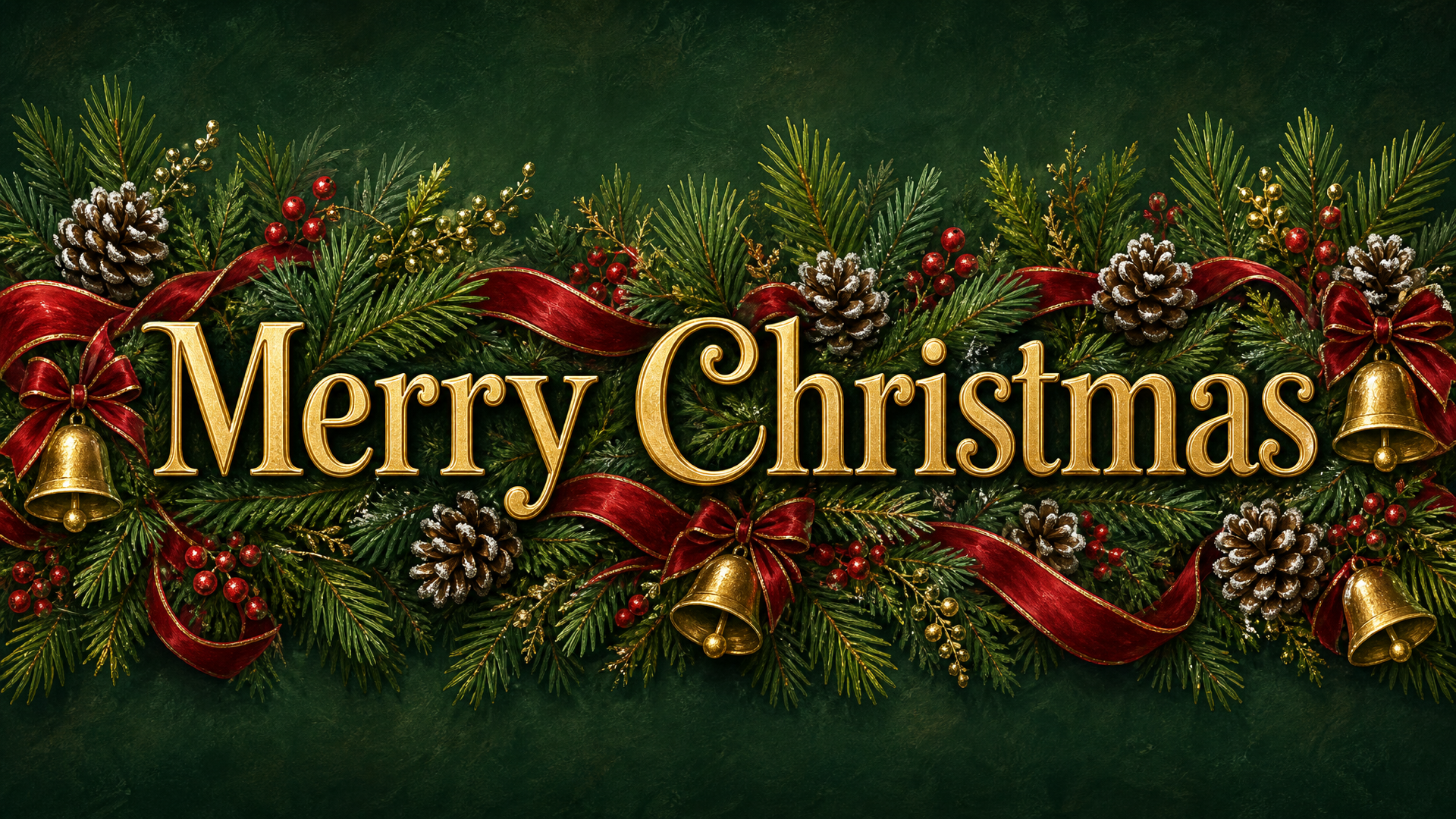
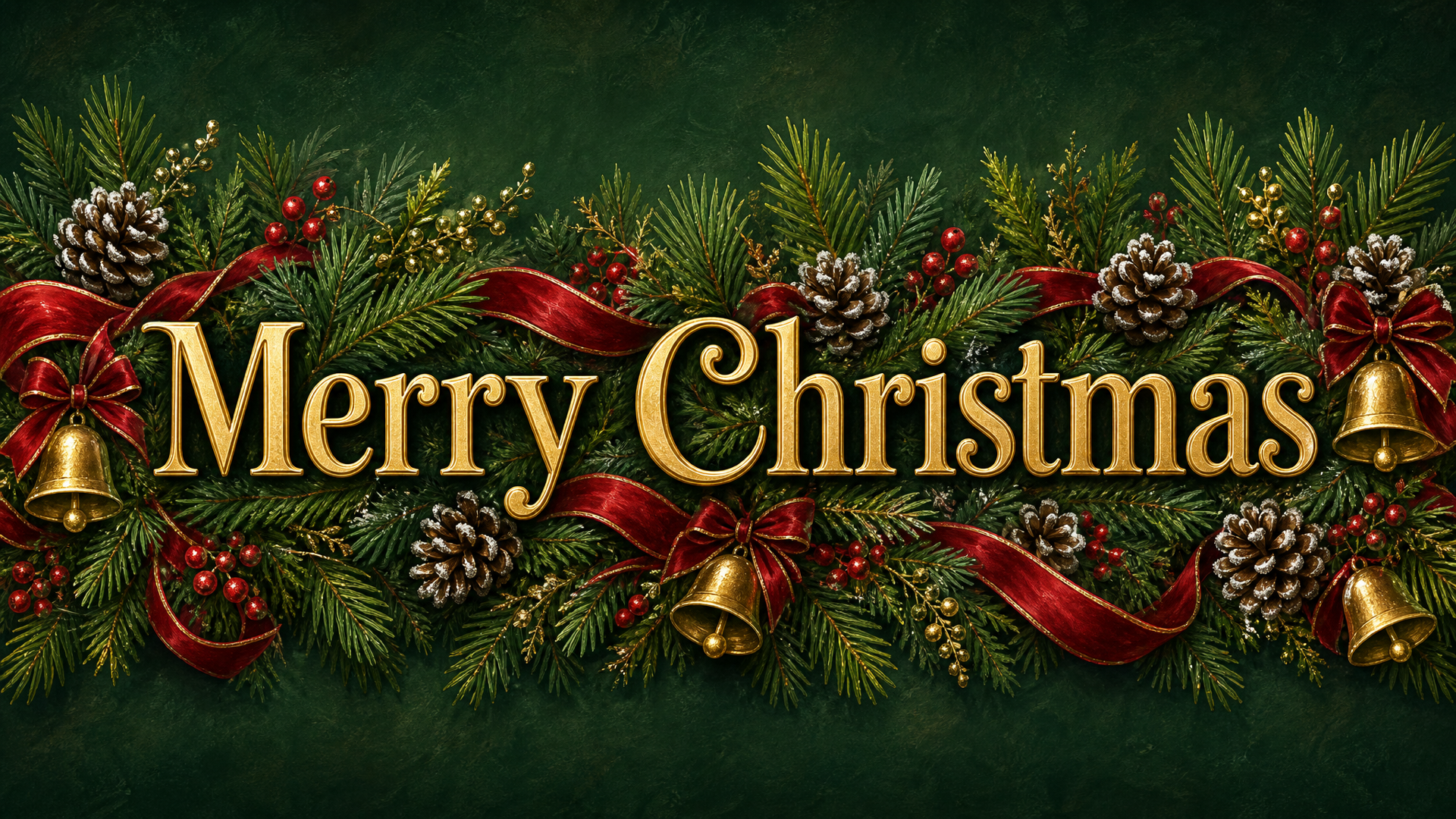
Green and Gold Painted Pine Garland Christmas Banner
Social Banners
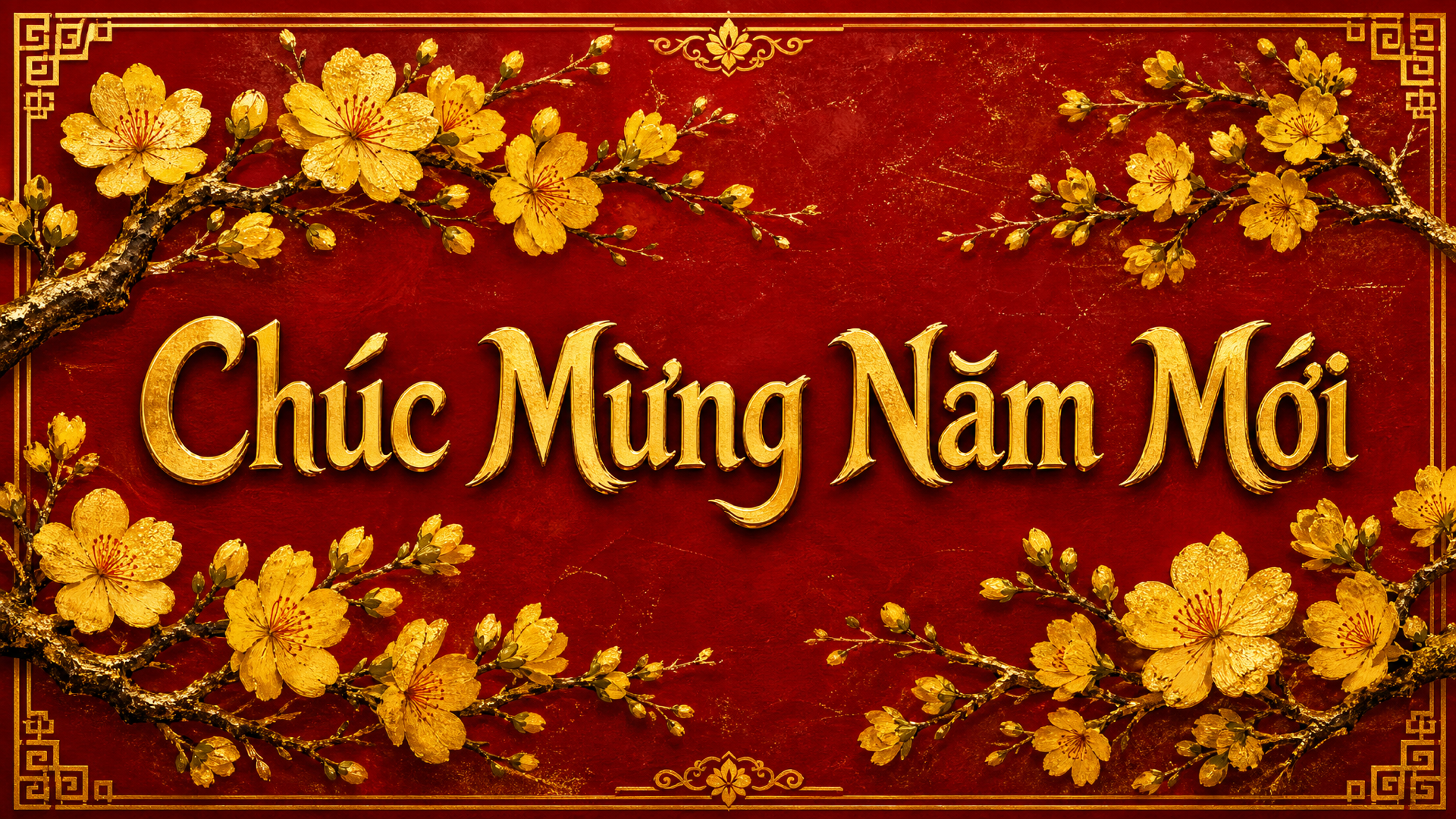
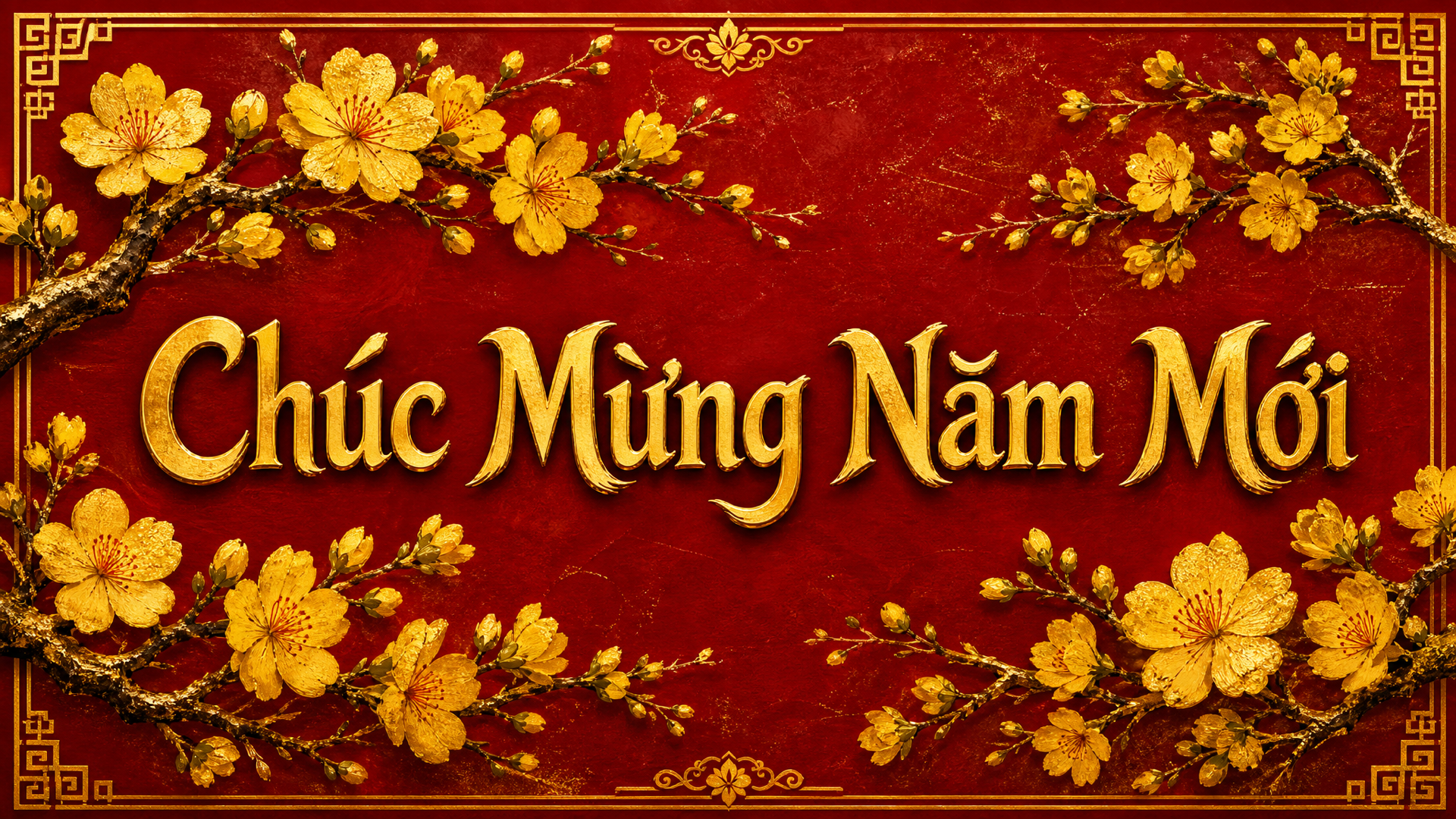
Red and Gold Apricot Blossom Banner
Social Banners
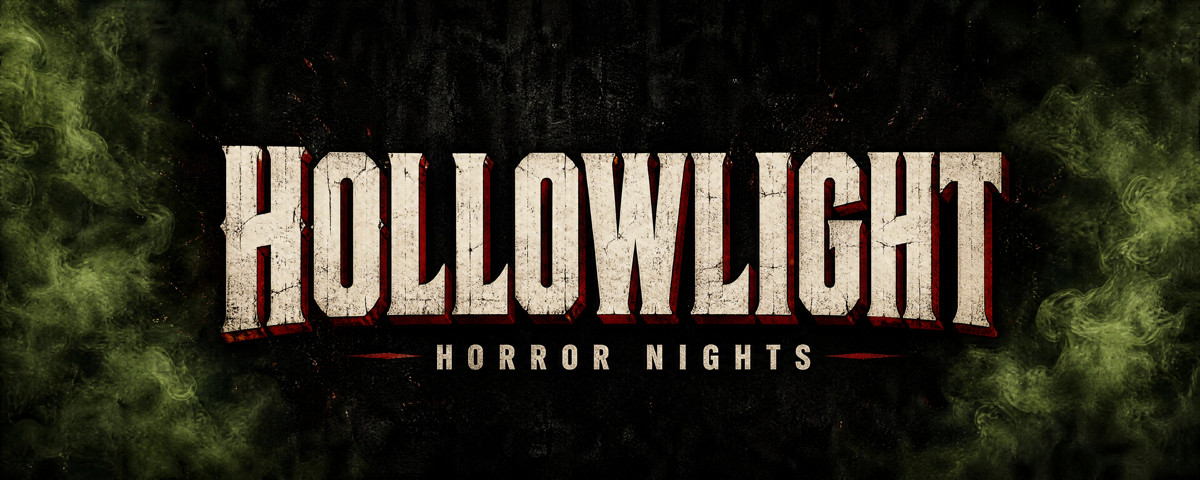
Black and Green Grainy Horror Twitch Banner
Social Banners
4.6
2,100+ reviews



Channel art that reads on a TV and a phone
A YouTube banner is the header image at the top of a channel page, and a good one tells new visitors what the channel is about at a glance. In a drag-and-drop editor, you spend the time moving text boxes, fiddling with layers, and guessing at composition. Starting from a template that is already well composed and describing the changes works the other way around.
A prompt can change the headline, the colors, the style, or the layout, such as "Put the upload schedule under the channel name" or "Switch to a dark neon palette." Creators use it for a channel refresh, a new series, or a launch week, and a new channel logo pairs well with fresh art.
How to make a YouTube banner:
Step 01
Choose a template
Explore banner templates and find a design that fits your platform and brand. Select it to start editing.
Step 02
Describe your edits with AI prompts
Type what you want changed. Adjust text, colors, style, and composition. For example: "Change the headline to SUMMER SALE," "Make the background navy blue," or "Switch to a minimalist style with clean lines."
Step 03
Export your banner
Download your finished banner. Need versions for multiple platforms? Generate variations for Facebook, X, or YouTube channel art.
Learn More
Check out Nano Banana Pro and try it on VEED:
Edit YouTube channel art by typing
Start from a template built for channel art, then ask for the changes: the channel name in the center, the upload schedule underneath, a neon or minimalist palette. Use Nano Banana Pro for high-fidelity edits, Qwen for text-heavy designs, and Flux Kontext for fast iterations.
Build it from your own face or art
Upload a headshot, a gameplay still, or a brand asset to the AI image editor and describe the banner you want. Remove the background first to cut yourself out, and keep the face clear of the channel icon and link icons that sit over the banner.
From still channel art to channel video
This page makes still banners. For animated banners for your YouTube channel, use the video banner maker. Once the art is set, a channel trailer gives new visitors something to press play on.
FAQ
A YouTube banner is the wide header image at the top of a channel page, also called channel art. It shows on desktop, mobile, and TV, and it gives visitors a first look at the channel's name, style, and upload schedule. VEED offers banner templates you can edit with AI prompts, then download as a still image for your channel.
Making a YouTube banner means picking a layout, changing it to fit the channel, and exporting the image. In VEED, choose a banner template, describe the edits in a prompt, such as the channel name, colors, or style, and re-prompt until it looks right. Then download it. You never move text boxes or layers by hand, as you would in a drag-and-drop editor.
A YouTube channel banner should be uploaded at 2560 x 1440 pixels (16:9), at least 2048 x 1152, and under 6 MB. Only the center 1546 x 423 pixels shows on every device, so keep the channel name and key text there. For the full breakdown, see the YouTube banner size guide.
An effective YouTube banner is simple, readable on a phone, and recognizable as the channel at a glance. Keep these in mind:
- Keep the headline to 5 words or fewer.
- Use high contrast between text and background.
- Stick to your brand colors.
- Keep one clear focal point.
- Check how it crops on mobile and keep text in the center safe area.
Good YouTube banner ideas match what the channel posts and keep the center clear for text. Three to try:
- A gaming channel: a neon palette, the channel name, and the stream schedule.
- A personal brand refresh: a cut-out headshot, a short tagline, and a minimalist dark background.
- A series launch: the show title, the premiere day, and colors pulled from your thumbnails.
The cost of a YouTube banner depends on the tool you use. In VEED, the banner maker requires AI credits to access the image models, and the credit cost displays when you browse the model selection, so you can see it before you generate. Check pricing for subscription plans and credit add-ons.
Loved by creators.
Loved by the Fortune 500
“
With VEED I didn't need 15 tutorials - I jumped straight in and started editing.

Gwenne Wilcox
Founder,
Brand Brainery
“
You can go beyond choppping things. VEED actually makes my videos look great.

Michael Glover
Demand Gen Manager,
ConvertFlow
“
The first four videos i created with VEED got over 40,000 impressions on LinkedIn.

Travis Tyler
Senior Content Producer,
PandaDoc
“
I found VEED at the right time: if you're making UGC ads and not using Eye Contact Correction and Noise Reduction on VEED you're missing out on ROI.

Sebastian Schurgers
Head of Growth Marketing,
Gronda
“
With VEED I didn't need 15 tutorials - I jumped straight in and started editing.
Gwenne Wilcox
Founder,
Brand Brainery
“
You can go beyond choppping things. VEED actually makes my videos look great.
Michael Glover
Demand Gen Manager,
ConvertFlow
“
The first four videos i created with VEED got over 40,000 impressions on LinkedIn.
Travis Tyler
Senior Content Producer,
PandaDoc
“
I found VEED at the right time: if you're making UGC ads and not using Eye Contact Correction and Noise Reduction on VEED you're missing out on ROI.
Sebastian Schurgers
Head of Growth Marketing,
Gronda
“
The first four videos i created with VEED got over 40,000 impressions on LinkedIn.
Travis Tyler
Senior Content Producer,
PandaDoc
“
I found VEED at the right time: if you're making UGC ads and not using Eye Contact Correction and Noise Reduction on VEED you're missing out on ROI.
Sebastian Schurgers
Head of Growth Marketing,
Gronda
“
With VEED I didn't need 15 tutorials - I jumped straight in and started editing.
Gwenne Wilcox
Founder,
Brand Brainery
“
You can go beyond choppping things. VEED actually makes my videos look great.
Michael Glover
Demand Gen Manager,
ConvertFlow
Discover more
Explore related tools
More from VEED

This is the Best YouTube Banner Size (and Examples of Great Channel Art)
Here's the best size for your YouTube banner and everything you need to know to make eye-catching channel art.

AI Art Prompts: How to Write Better Prompts, Creative Examples, and Tools to Try
Getting your AI art prompts is the key to winning with generative AI tools. Learn how to write better prompts here.

Branded Video 101: What is it and How to Get Started
A branded video is a marketing asset that uses storytelling to engage an audience and build brand awareness. Learn more in this guide.
Trusted by 1M+ creators
When it comes to amazing videos, all you need is VEED
No credit card required
More than a YouTube banner maker
A banner is one part of how a channel looks to a new visitor, next to the icon, the thumbnails, and the first video they click. VEED is an AI video creation platform, so the work can continue past the image: generate a scene or a clip from a written prompt in the AI video generator, refine it in the video editor, keep fonts, colors, and logo consistent with your channel art, and export in the format YouTube expects. A natural next piece is a channel intro that opens every upload in the same palette as your banner.