


Trusted by 1M+ creators
Zoom Backgrounds
Zoom backgrounds sized for your call, not cropped from someone's phone wallpaper. Edit the prompt, hit generate
No credit card required

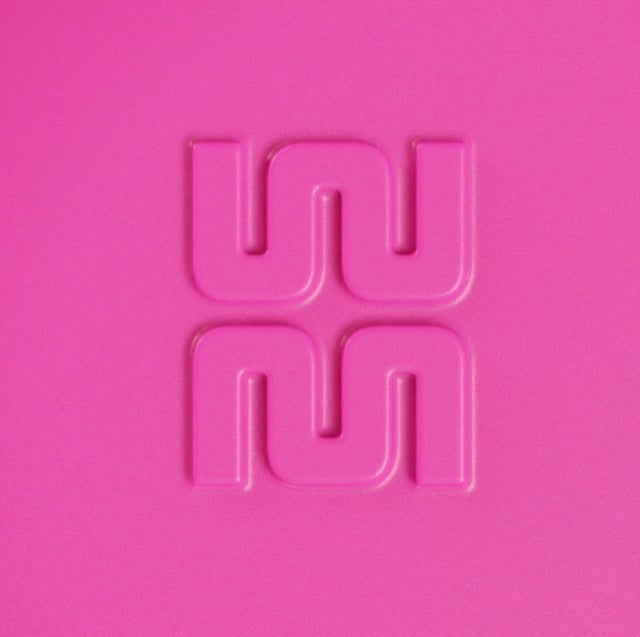
3D Surface
Vibrant, Bold, Shapes

Edgy Typography
Vibrant, Bold, Shapes
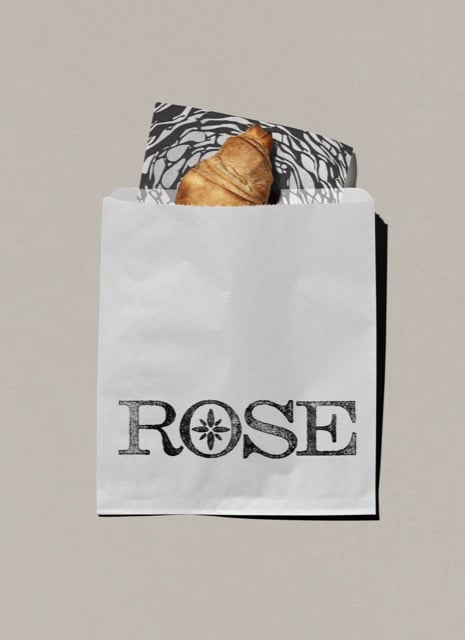
Corner Shop
Vibrant, Bold, Shapes
4.6
2,100+ reviews














A Zoom background that is not your blurred kitchen
Zoom backgrounds from a stock library rarely fit the meeting you are actually in. The light points the wrong way, the room reads as generic, and half the call already has the same beach or bookshelf behind them. Opening a background template and editing the prompt works the other way: you write the surface, the light, and the mood you want, then generate a backdrop built for a 16:9 call window instead of downloading one made for someone else's screen.
The prompt controls the surface, the light direction, and how busy or plain the scene is, so you can keep the center quiet for your own head and shoulders and push detail toward the edges. Remote workers, sales reps, teachers, and anyone doing back-to-back calls use this for a virtual background that looks chosen rather than defaulted to, and you can clean up distracting elements in the AI image editor before your next meeting.
How to make a Zoom background:
Step 01
Edit the prompt
Every background template opens with a prompt already in the box. Change the subject, surface, lighting, color palette, and mood to fit what will sit in front of it. The more specific the prompt, the less generic the background.
Step 02
Set the shape and generate
Write the shape into the same prompt: 1:1 for product listings, 16:9 for Zoom, Teams, and YouTube, 9:16 for Stories and Reels. Hit "generate" and the AI composes the background for that ratio instead of handing you a square to crop.
Step 03
Download
Download your background or clean up distracting elements first in the AI image editor.
Learn More
Check out Nano Banana Pro and try it on VEED:
One backdrop, sized right for every call app
Zoom, Teams, and Google Meet all scale a virtual background slightly differently, but they all read best at 1920 x 1080, 16:9. Ask the template for the same scene at that ratio and it renders full width from the start, with the center left quiet for your head and shoulders and detail pushed toward the edges, so nothing crops out mid-sentence on a smaller monitor.
A backdrop that looks like you chose it, not the app's gallery
The default Zoom library is the same dozen images half your contacts already use. Surface, palette, lighting, and depth of field come from your prompt instead, so a soft daylight office or a plain color reads as deliberate. Switch the AI model if the texture looks off, and re-prompt for warmer light or a scene pushed further back until it looks like your setup, not a stock pick.
From a still backdrop to a finished recording
A Zoom background does not have to stay a still image behind a live call. Add a background to video to drop the same backdrop behind a recorded clip, or use the video background remover to cut the original room out of call footage first and lay the new scene behind it, for a recap or a highlight reel after the meeting ends.
FAQ
A custom Zoom background starts as an image file you upload in Zoom's own virtual background settings, not something Zoom generates for you. Open a background template, edit the prompt for the surface, light, and mood you want, set the shape to 16:9, and generate. Download the result, then add it under Zoom's Settings > Backgrounds & Effects.
Zoom virtual backgrounds work best at 1920 x 1080 pixels, a 16:9 ratio. Zoom accepts smaller files, down to 1280 x 720, but a larger background stays sharp on big monitors. Keep the center quiet for your head and shoulders and put detail toward the edges, and remember Zoom mirrors your own preview by default, so text can look backward to you while everyone else sees it correctly.
A good Zoom background keeps the center calm so your face stays the focus, with detail pushed toward the edges instead of competing for attention behind you. Busy patterns, small text, or high-contrast edges tend to shimmer under video compression. A background made from a template prompt lets you control exactly how much is happening behind you, rather than taking whatever a stock library offers.
This page generates a still image, not a moving background. For an animated or video Zoom background, VEED's separate animated wallpapers maker outputs a video file for apps that support animated backgrounds. A still background made here can also sit behind footage in a video project, for a recorded call or a meeting recap clip.
A stock Zoom background is a fixed image anyone can download, so it is common for several people on the same call to end up with the same beach or bookshelf. A background generated from a prompt is built for your surface, light, and mood instead, sized to the call ratio from the start. For work, a plain, tidy surface with even light and a calm palette usually reads better than a busy stock scene.
Generating a Zoom background uses AI credits rather than a flat price, and the exact cost depends on the AI model you pick and how many images you generate; it shows on the generate button before you commit. See pricing for details, or start from the AI background generator to write a prompt from scratch instead of a template.
Loved by creators.
Loved by the Fortune 500
“
With VEED I didn't need 15 tutorials - I jumped straight in and started editing.

Gwenne Wilcox
Founder,
Brand Brainery
“
You can go beyond choppping things. VEED actually makes my videos look great.

Michael Glover
Demand Gen Manager,
ConvertFlow
“
The first four videos i created with VEED got over 40,000 impressions on LinkedIn.

Travis Tyler
Senior Content Producer,
PandaDoc
“
I found VEED at the right time: if you're making UGC ads and not using Eye Contact Correction and Noise Reduction on VEED you're missing out on ROI.

Sebastian Schurgers
Head of Growth Marketing,
Gronda
“
With VEED I didn't need 15 tutorials - I jumped straight in and started editing.
Gwenne Wilcox
Founder,
Brand Brainery
“
You can go beyond choppping things. VEED actually makes my videos look great.
Michael Glover
Demand Gen Manager,
ConvertFlow
“
The first four videos i created with VEED got over 40,000 impressions on LinkedIn.
Travis Tyler
Senior Content Producer,
PandaDoc
“
I found VEED at the right time: if you're making UGC ads and not using Eye Contact Correction and Noise Reduction on VEED you're missing out on ROI.
Sebastian Schurgers
Head of Growth Marketing,
Gronda
“
The first four videos i created with VEED got over 40,000 impressions on LinkedIn.
Travis Tyler
Senior Content Producer,
PandaDoc
“
I found VEED at the right time: if you're making UGC ads and not using Eye Contact Correction and Noise Reduction on VEED you're missing out on ROI.
Sebastian Schurgers
Head of Growth Marketing,
Gronda
“
With VEED I didn't need 15 tutorials - I jumped straight in and started editing.
Gwenne Wilcox
Founder,
Brand Brainery
“
You can go beyond choppping things. VEED actually makes my videos look great.
Michael Glover
Demand Gen Manager,
ConvertFlow
Discover more
Explore related tools
More from VEED

This is the Best YouTube Banner Size (and Examples of Great Channel Art)
Here's the best size for your YouTube banner and everything you need to know to make eye-catching channel art.

AI Art Prompts: How to Write Better Prompts, Creative Examples, and Tools to Try
Getting your AI art prompts is the key to winning with generative AI tools. Learn how to write better prompts here.

Branded Video 101: What is it and How to Get Started
A branded video is a marketing asset that uses storytelling to engage an audience and build brand awareness. Learn more in this guide.
Trusted by 1M+ creators
When it comes to amazing videos, all you need is VEED
No credit card required
More than a Zoom background maker
A Zoom background is often the first frame of something bigger: the meeting gets recorded, clipped, and shared as a recap or a tutorial. VEED is an AI video creation platform, so the same scene you generate for a live call can start a script in the AI video generator, get refined until the pacing and color hold together, keep your fonts, colors, and logo consistent through a brand kit, and export in the format each platform expects. That means the backdrop behind today's stand-up can become the set for a webinar recap or a screen-recorded product walkthrough posted right after the call ends.